Cursor + UE from Scratch: A Guide from Getting Started to Giving Up
This tutorial only covers installation on Windows. The test environment uses UE5.6.
Environment Setup
If you already have a build environment installed and can run VS or Rider normally, you can skip this step.
Download and Install the Compiler Toolset
Microsoft Visual C++ (MSVC) Compiler Toolset.
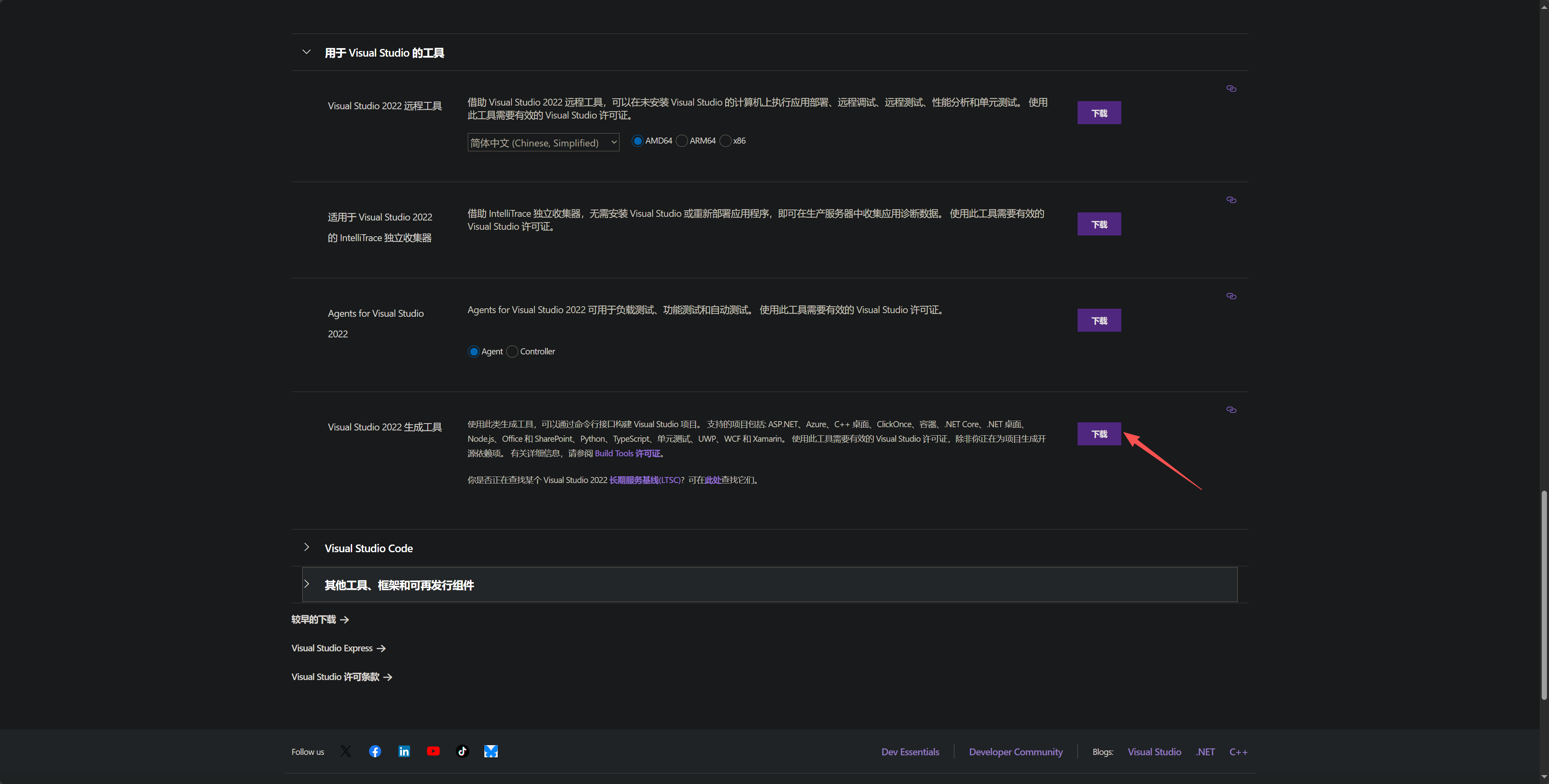
Configure VS
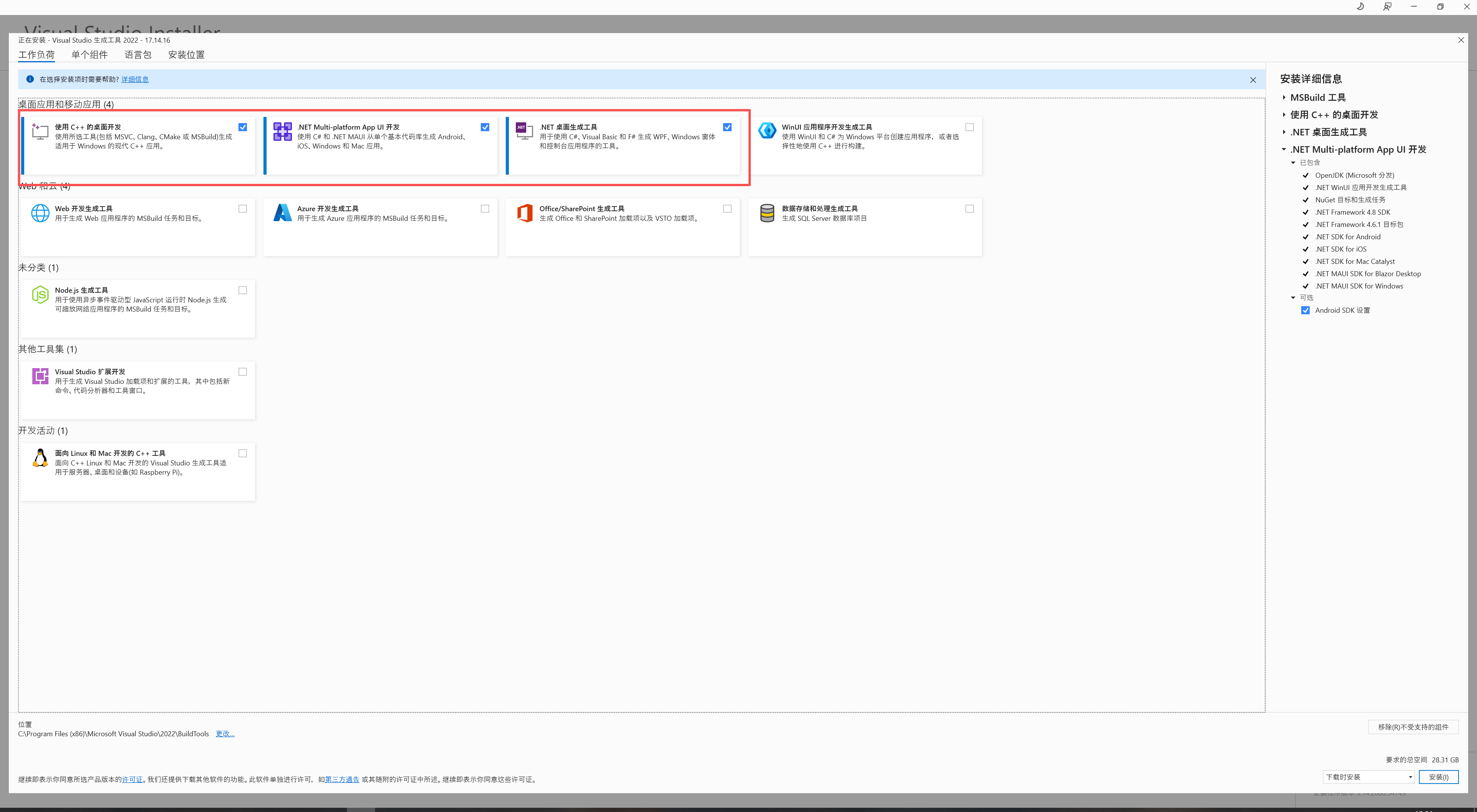
Select the three options shown in the image, then click Install.
Configure Cursor
Download and Install Cursor
Cursor: The Best Way to Code with AI
Open the Extensions View
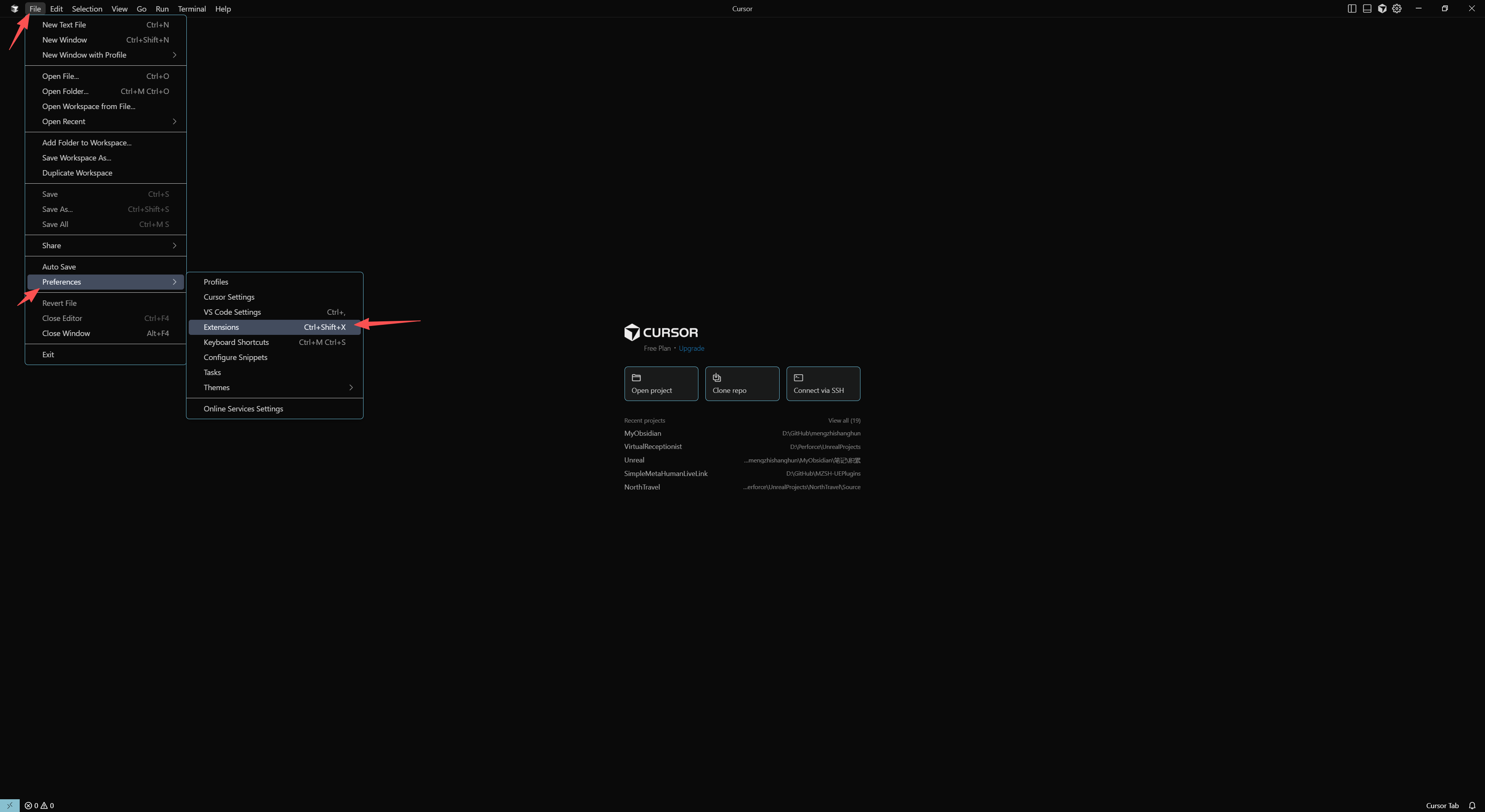
Install the Chinese Language Pack
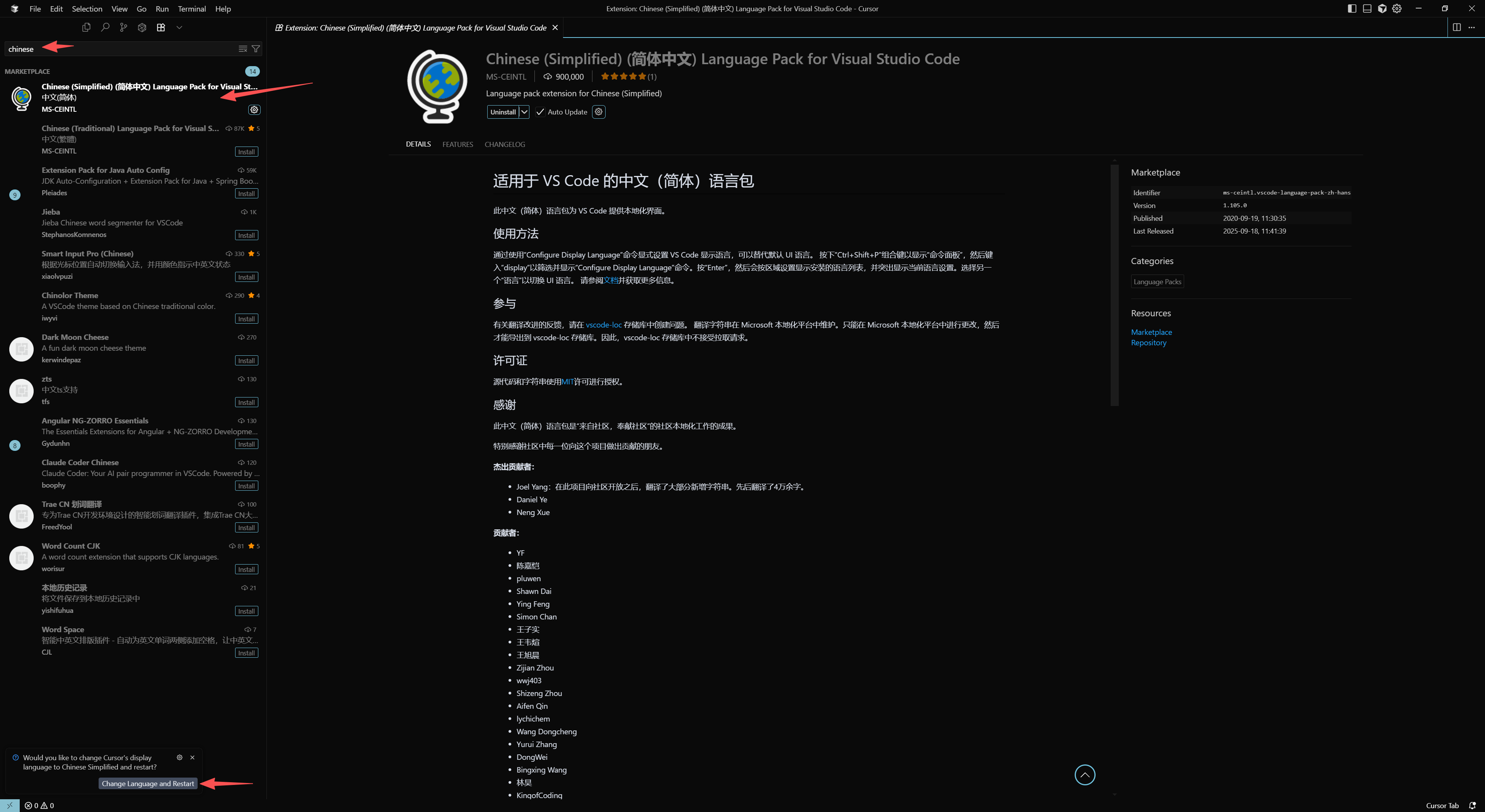
Search for Chinese and install the first result. After installation, you will be prompted to restart. Click Restart.
Install the C++ and C# Extensions
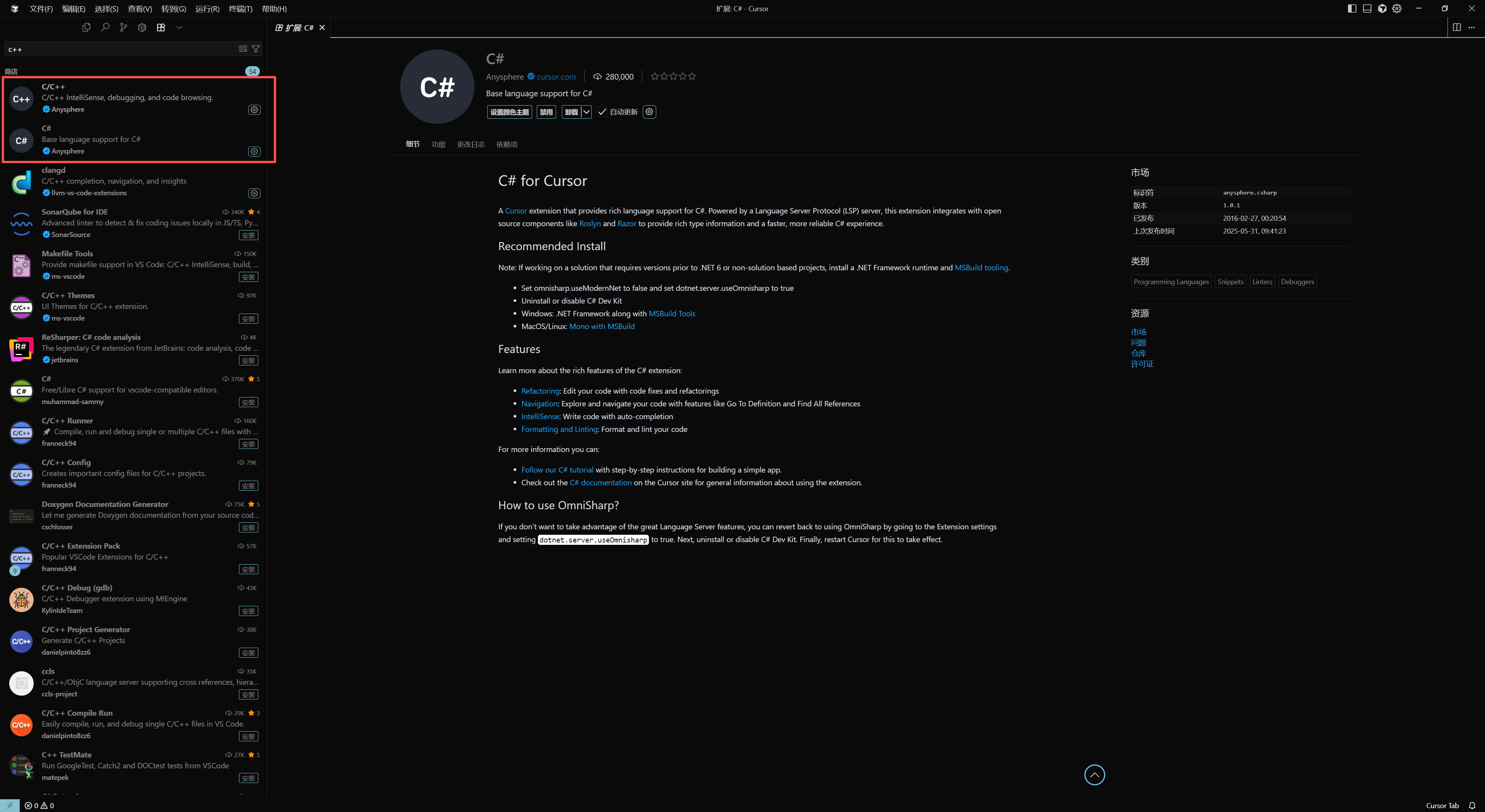
Search for C++ and install the C/C++ extension and the C# extension.
Your final set of extensions should look like this:
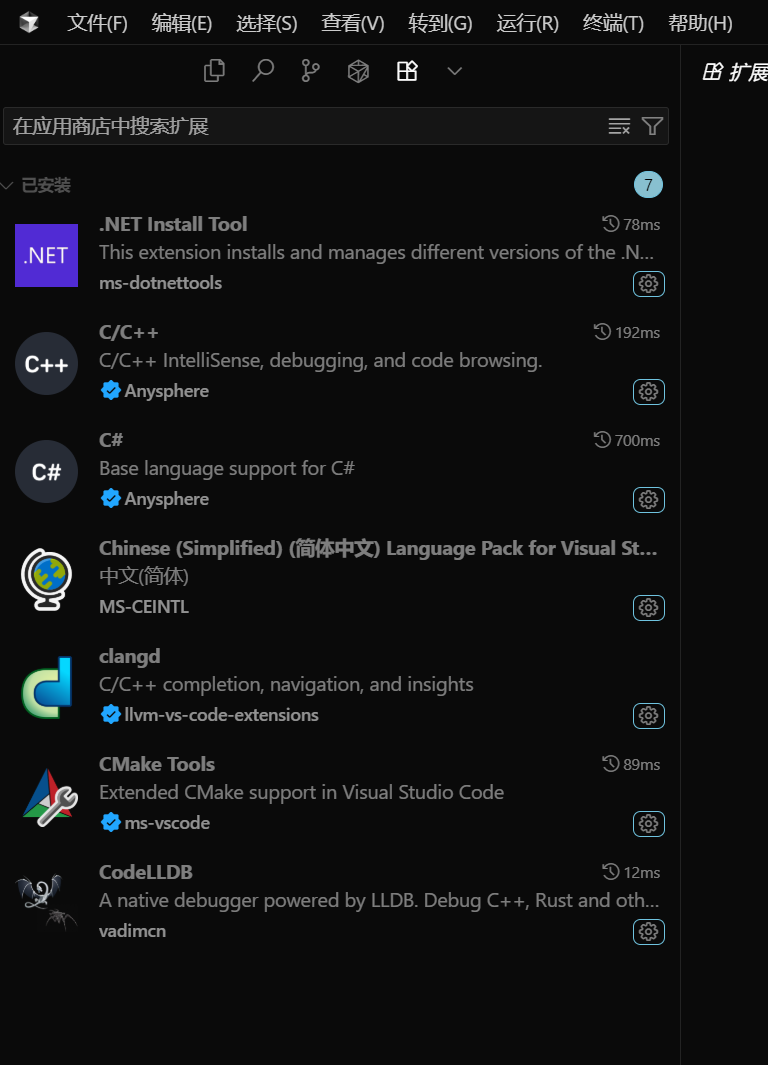
These are usually installed automatically after installing C/C++ and C#. If they are missing, try restarting or install them manually.
Set VSCode as the Default Source Code Editor
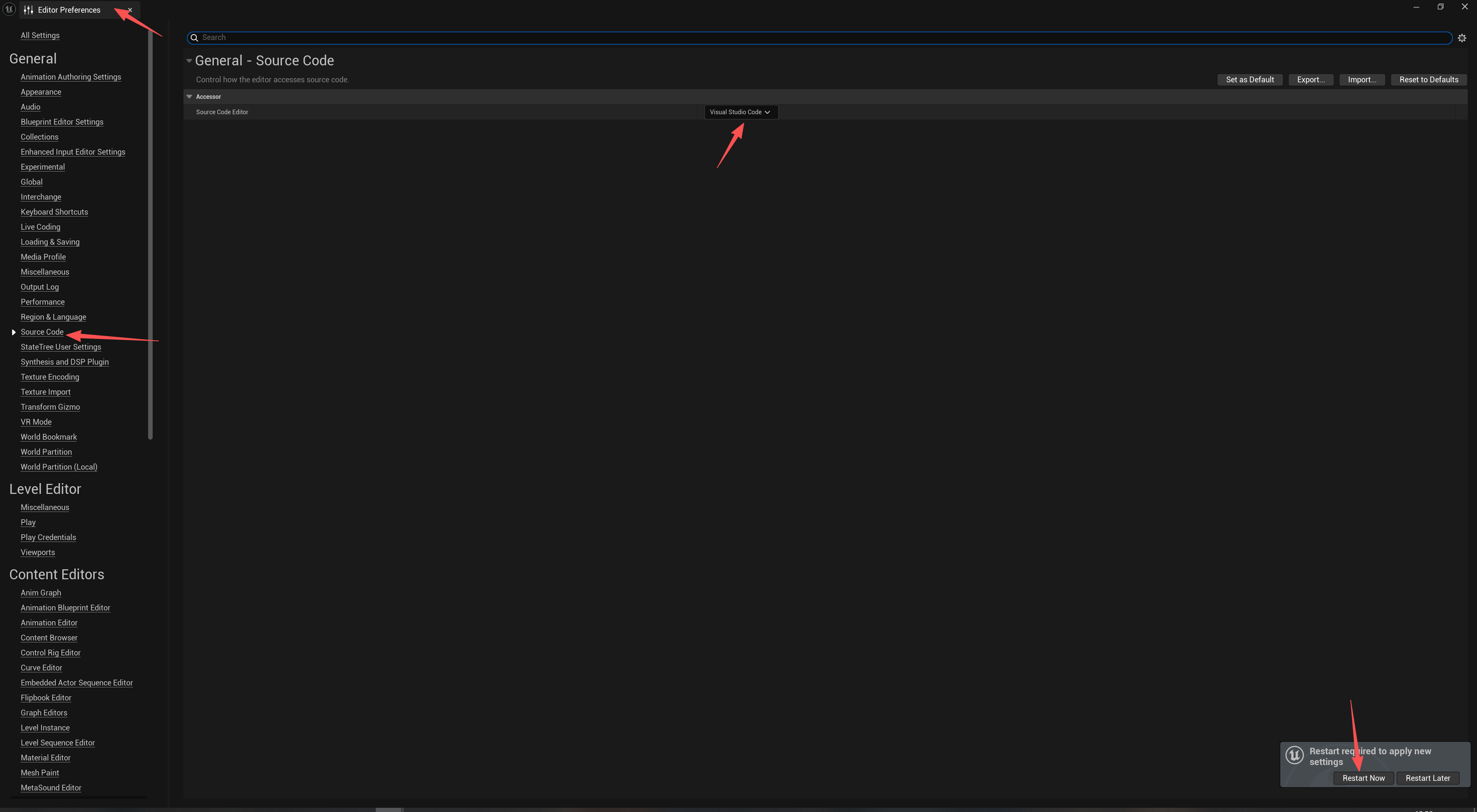
Regenerate the VSCode Workspace
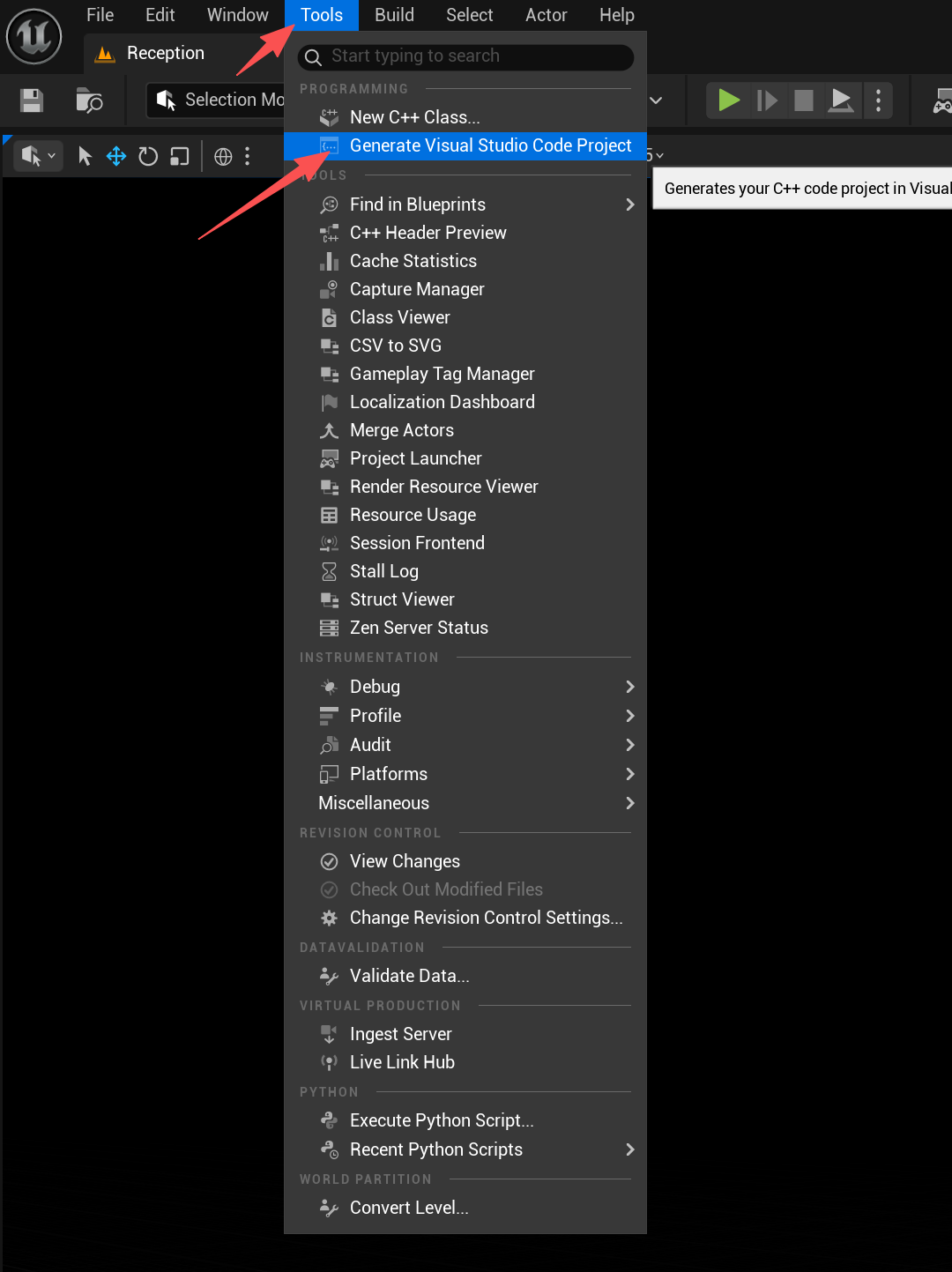
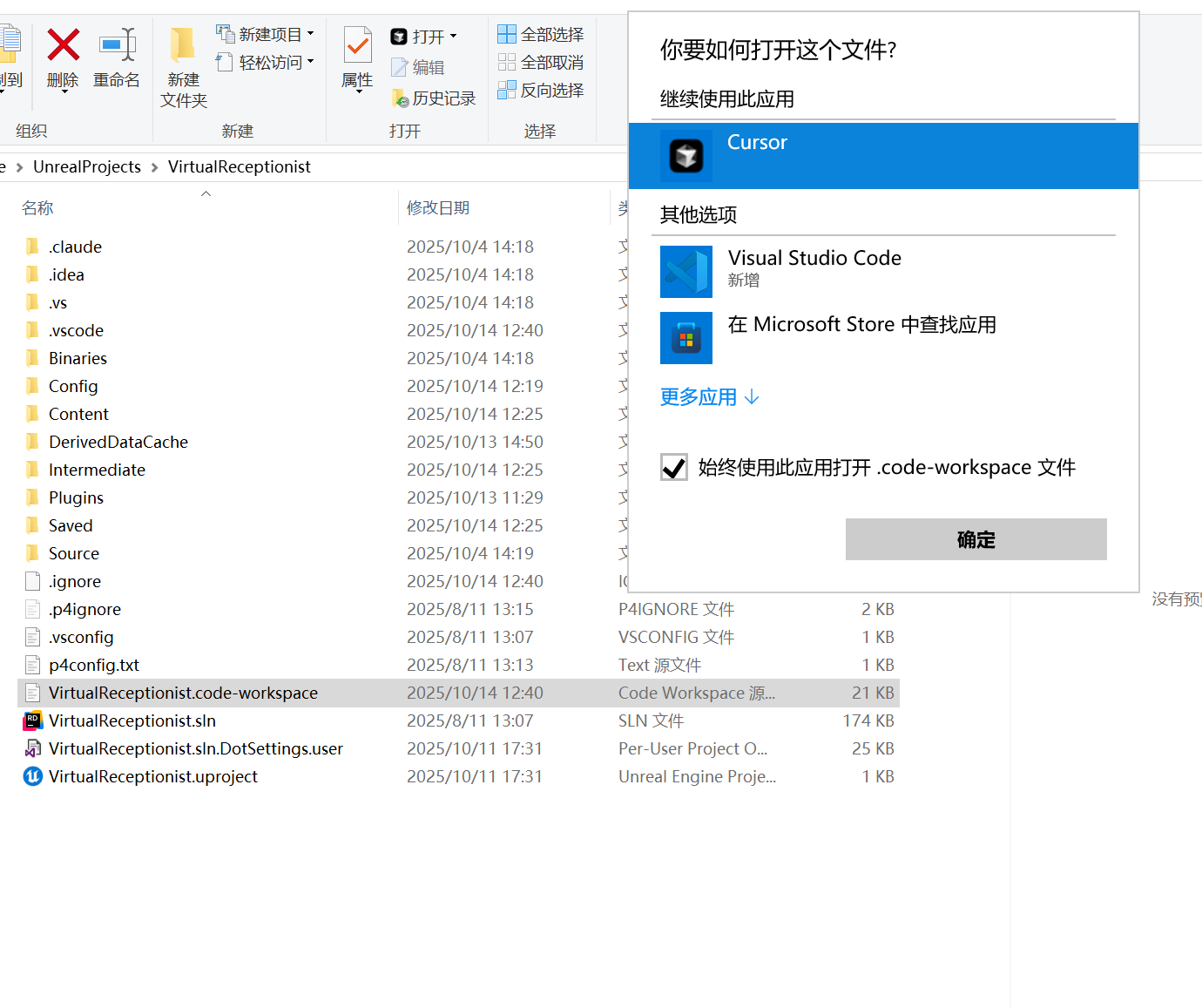
Set the Workspace to Open with Cursor
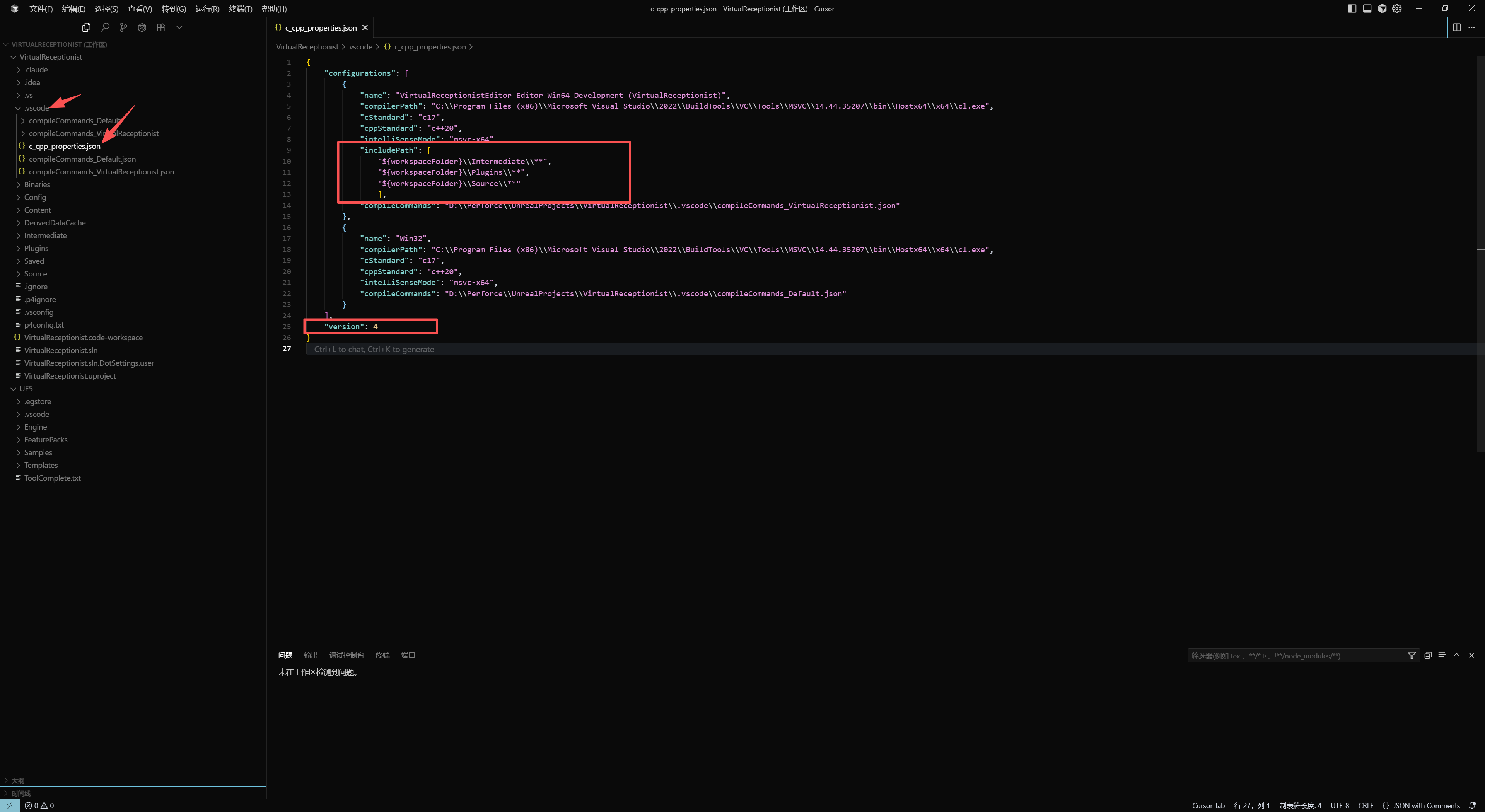
Configure IntelliSense
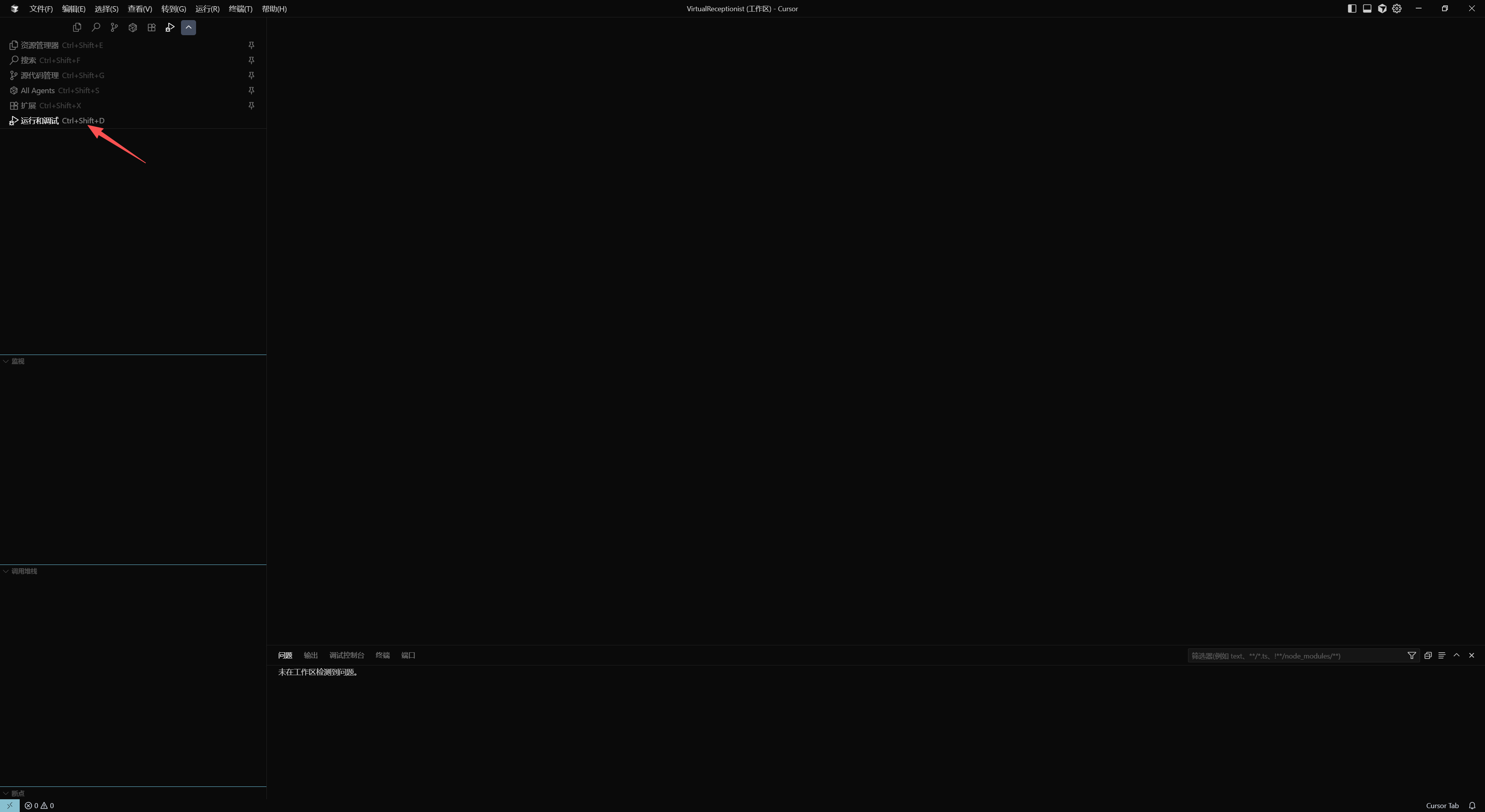
Debug and Run
Open the Debug panel.
Select Editor Development mode.
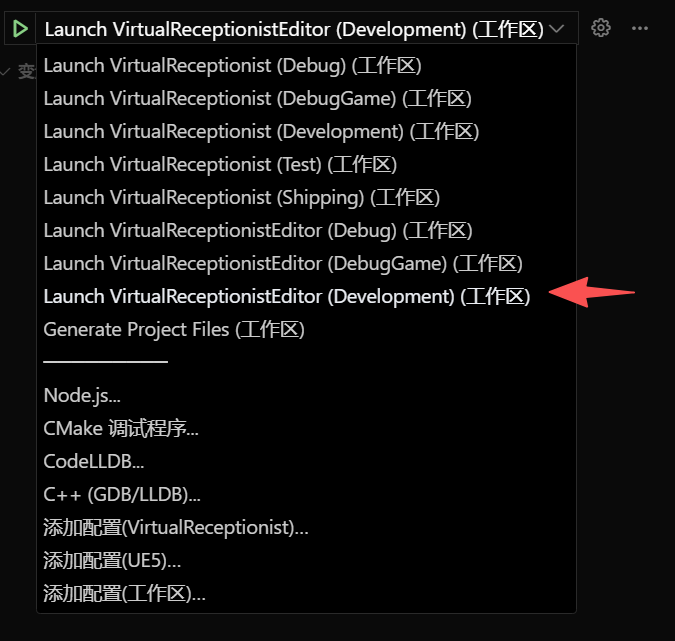
Click the arrow on the left or press F5 to start compiling.
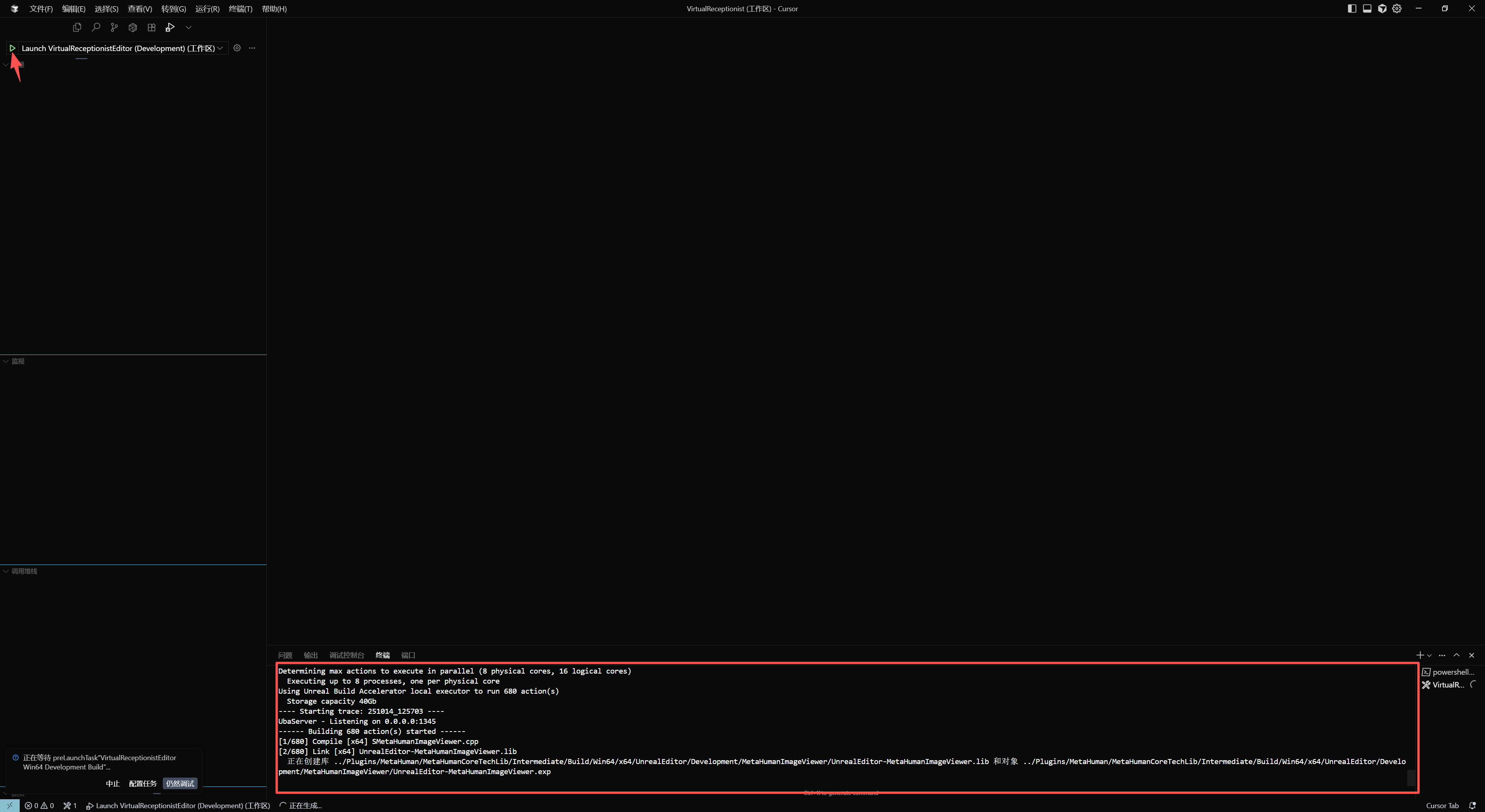
Wait for compilation to finish.
Troubleshooting
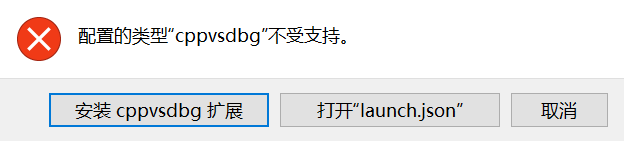
cppvsdbg Is Not Supported