Perforce: Source Control Operations in UE
Operations in Unreal are largely the same as those in Perforce
The main differences are that Unreal has built-in Chinese support and can compare Blueprint differences
Also, be sure to move and rename files in Unreal, because Unreal automatically updates references; otherwise, reference errors may occur
After moving or renaming files, right-click and use Fix Up Redirectors to fix redirects manually
Since Unreal’s interface is in Chinese, I will not go into much detail here and will only cover a few things to keep in mind
Connecting to a Perforce Server
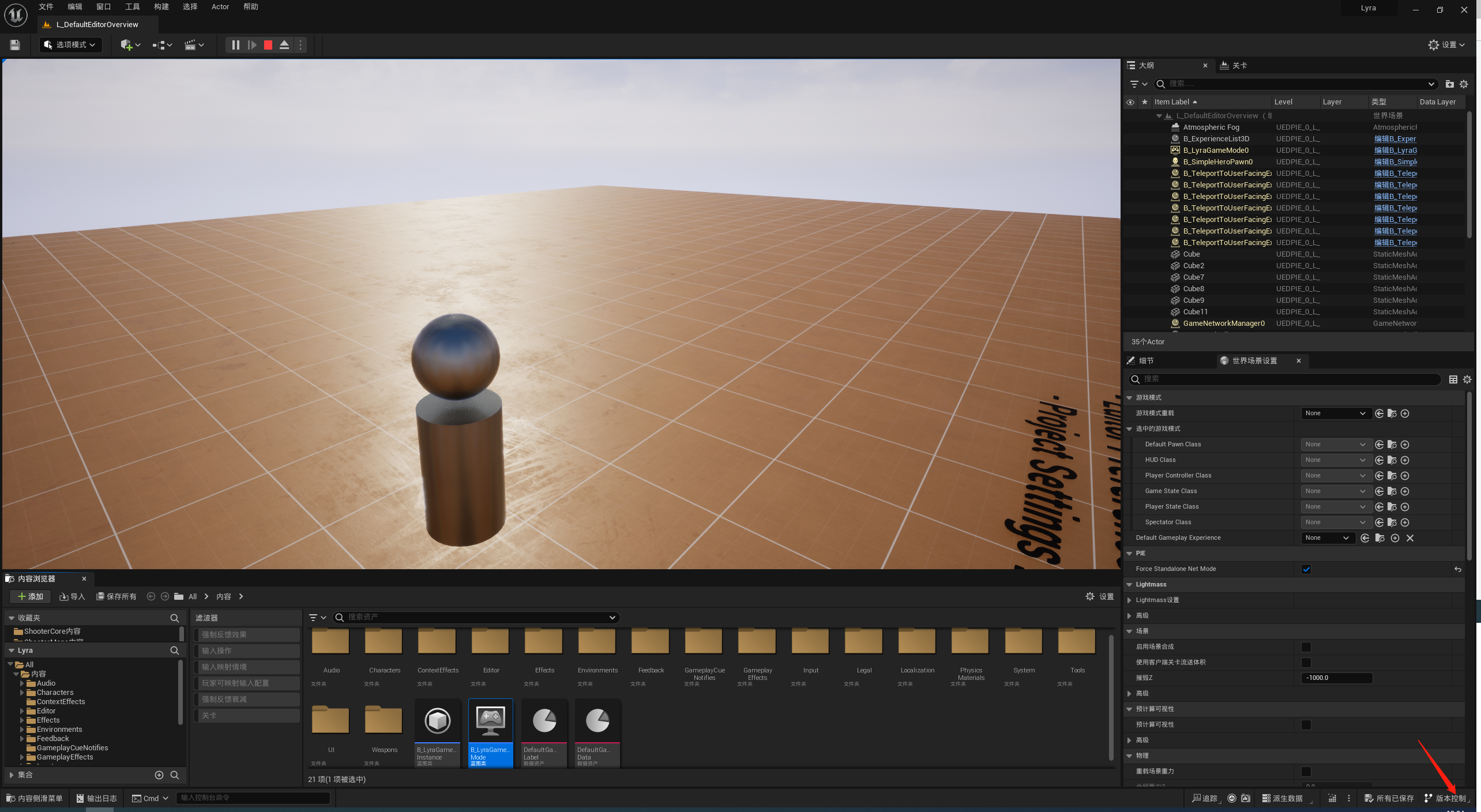
Open the Unreal Editor and click Source Control -> Connect to Source Control in the bottom-right corner
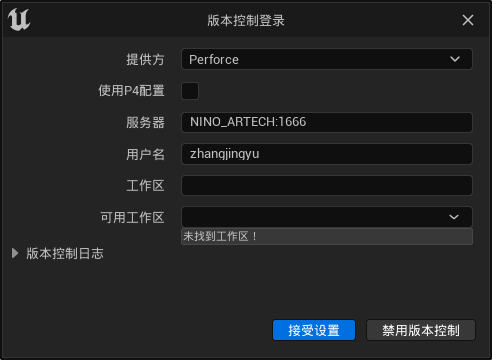
Select Perforce, enter the server address and username, and workspaces will be found automatically. Select an available workspace and click Accept Settings
Perforce Operations
All Perforce operations are collected here
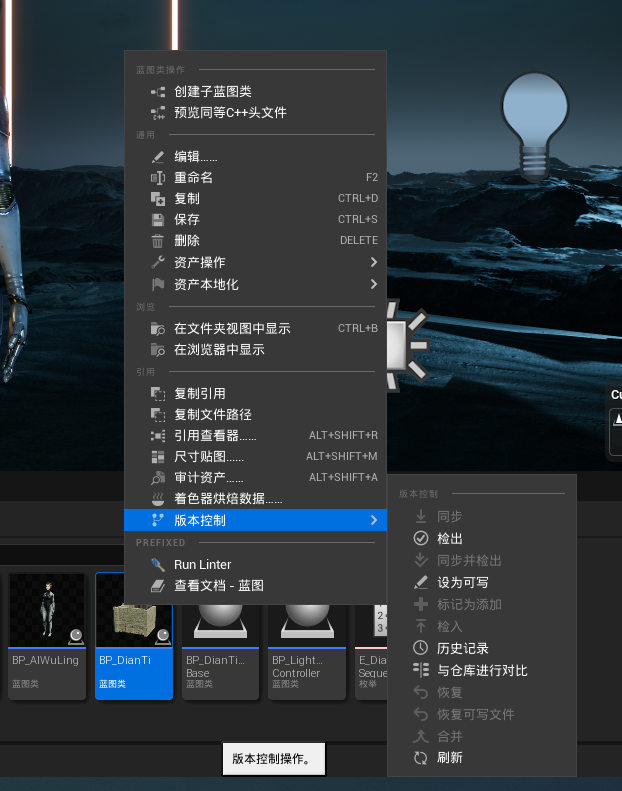
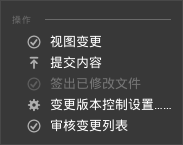
To submit, select View Changes under Source Control in the bottom-right corner to see all changelists, then submit as needed
Asset Control
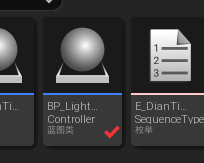
A red check mark means the file is checked out. If you checked it out accidentally, do not click Check In; click Revert instead
A green plus means the file is marked for addition to source control
A red X means the file will be deleted
Thanks for reading. Feel free to like, follow, bookmark, and discuss questions in the comments.
If this article helped you, click here to donate and support the author.
