UE: PixelStreaming
What Is Pixel Streaming?
How to Use It
Enable the Plugin
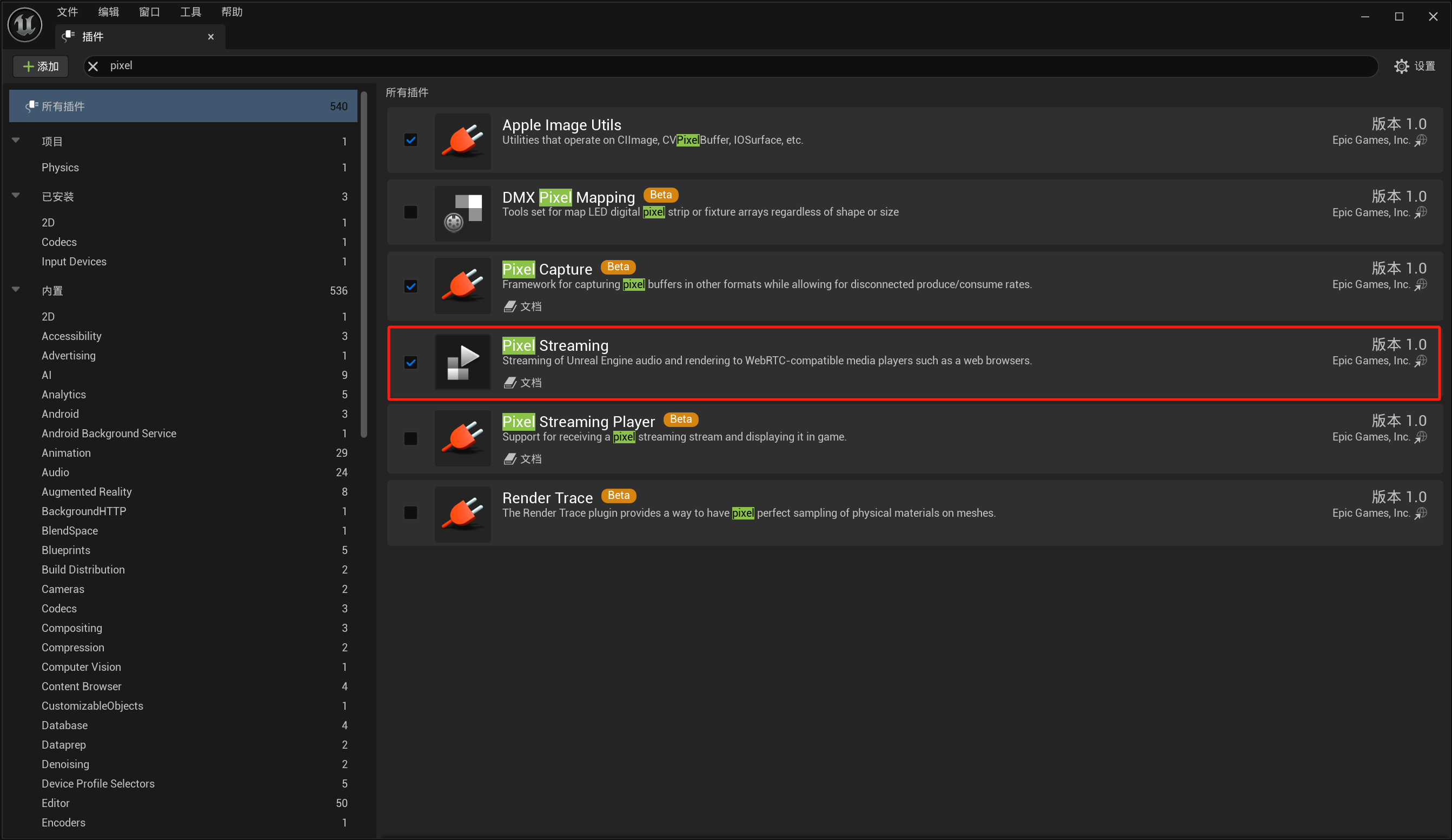
Just enable the PixelStreaming plugin
Add Launch Arguments
-AudioMixer -PixelStreamingIP=127.0.0.1 -PixelStreamingPort=8888 -PixelStreamingEncoderCodec=VP9
Through Editor Settings
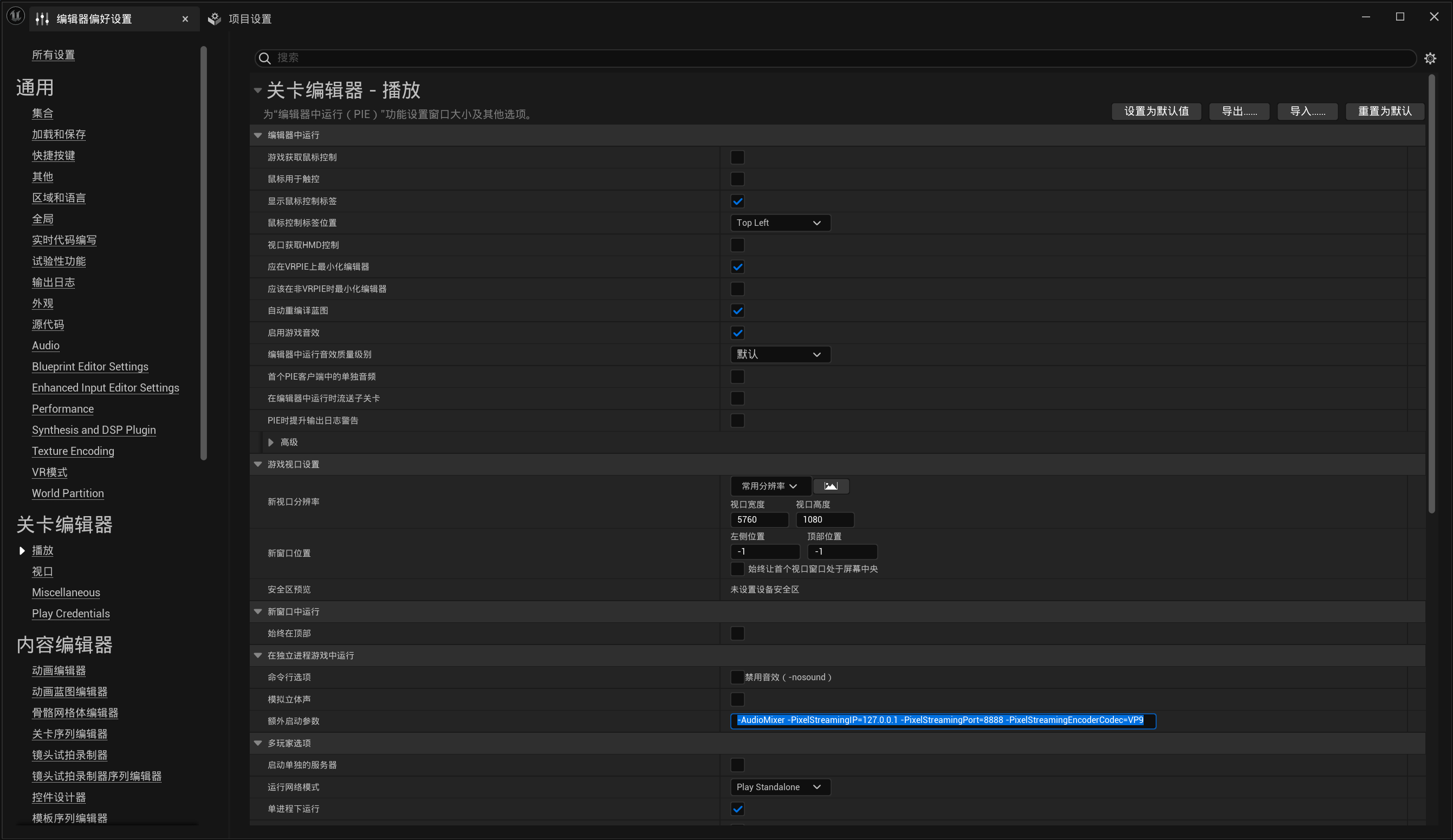
Editor Preferences -> Play -> Additional Launch Parameters
Notes:
- The official documentation uses -PixelStreamingIP=localhost, but in my testing localhost did not work, so enter 127.0.0.1 directly here
- This only takes effect in standalone mode. You can change the default standalone window size through the window settings above
- Video encoding for streaming in 5.3 only supports AV1, H264, VP8, and VP9; 5.4 supports H265. I recommend VP9 here for its broader compatibility. Even three 4K screens work fine, and its encoding efficiency is high too
Launch Through a Shortcut
This is familiar territory, so I will not go into it again.
Start the Signaling Server
Download from GitHub
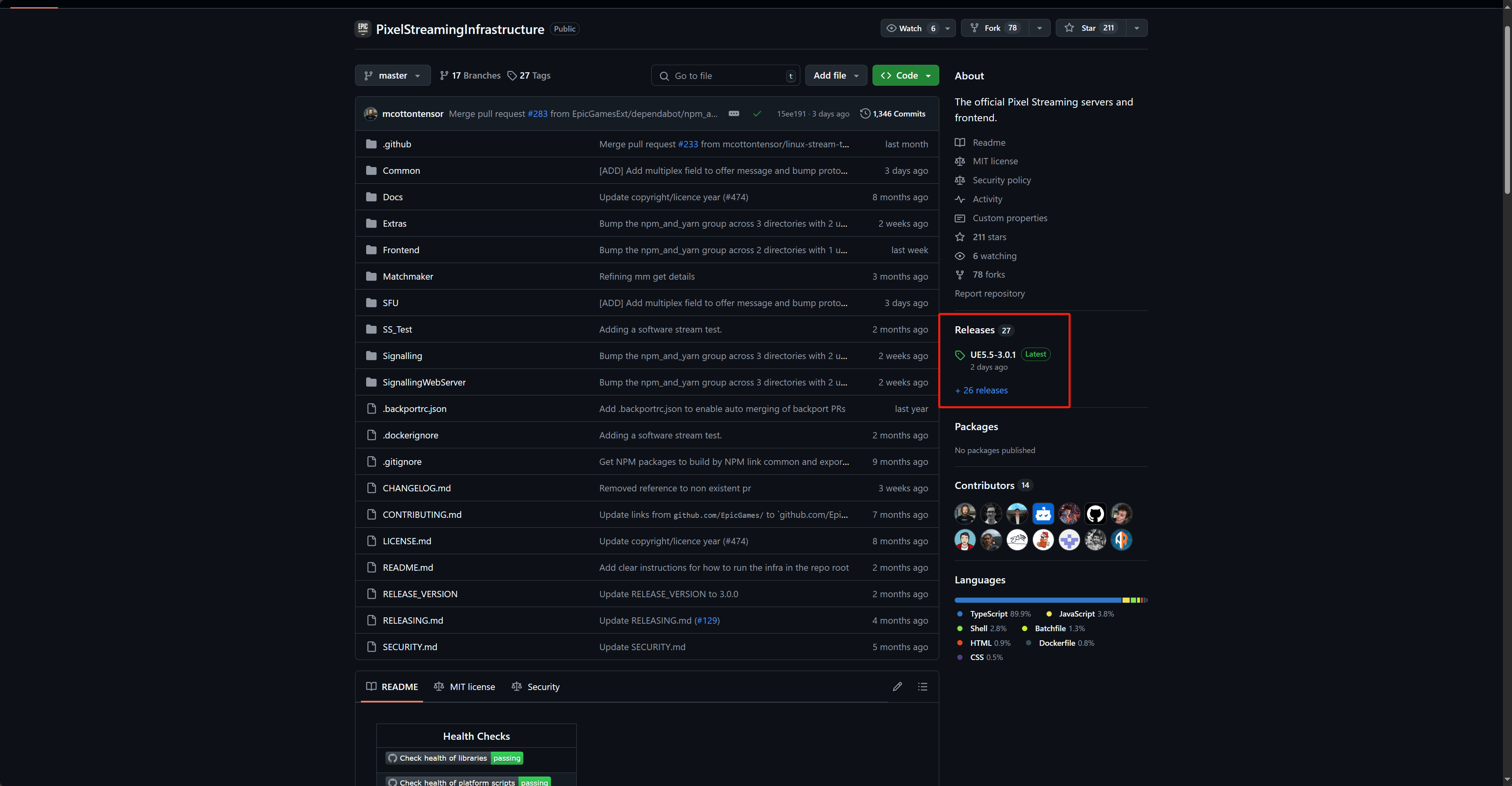
Go straight to the releases page
Find and download the version matching your engine. Why download a release directly? Because it is already built and ready to use. Downloading the main branch or another branch directly will produce a missing player.html error.
Download and Install Node
Node.js — Download Node.js® (nodejs.org)
After downloading, install it with all the default settings.
Start the Signaling Server
Open the files you downloaded from GitHub -> SignallingWebServer
Open cmd in this directory
Run the command:
node cirrus.js
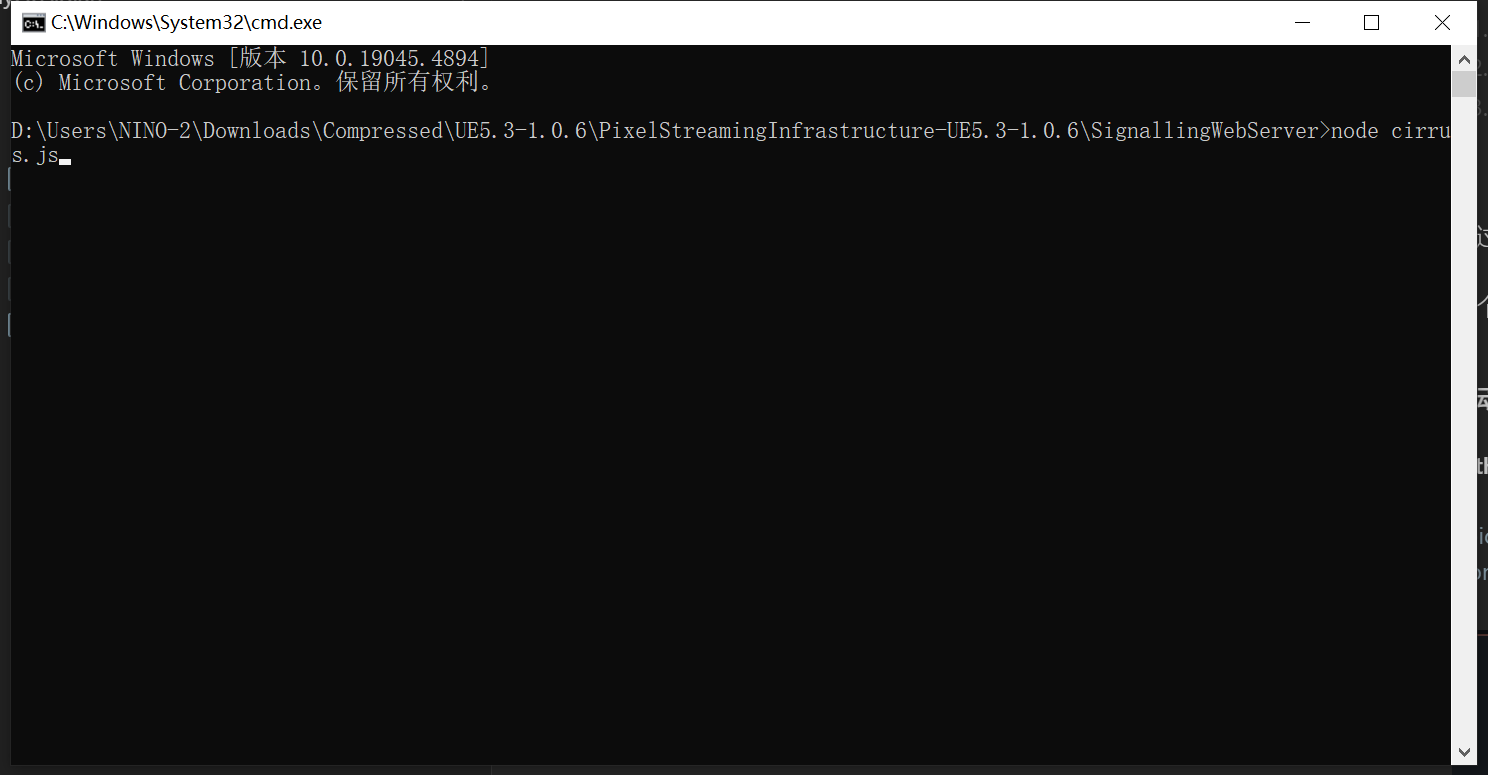
This is what success looks like:
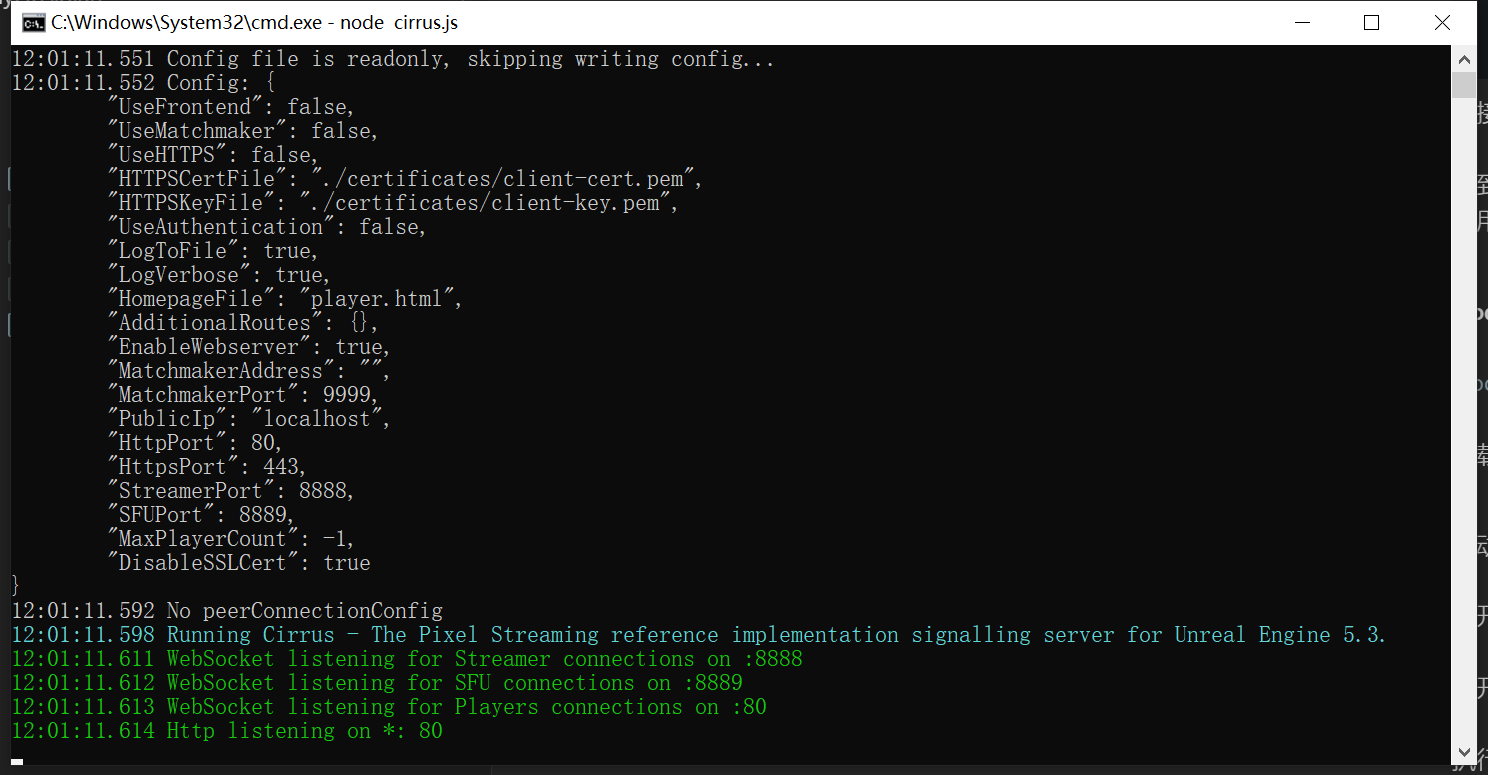
Access It in a Browser
Simply enter 127.0.0.1 in the browser; on another computer, enter the IP address.
The default listening port here is 80, so you can omit it. For another port, you need to change it explicitly.
Thanks for reading! Likes, follows, and bookmarks are welcome. Feel free to discuss any questions in the comments.
If this article helped you, click here to donate and support the author.
