AIDataAsset User Manual
Complete English product manual for AIDataAsset
Read and modify existing DataAssets through JSON, letting AI or other external tools process their data and automatically synchronize it back to UE. Supported data includes common basic types and most structs, including nested structs and properties in common containers such as TArray, TMap, and TSet.
DataAssets are stored as UE-serialized .uasset files and commonly hold skill tables, character attributes, loot tables, and AI behavior parameters. External AI tools cannot easily edit these fields directly. JSON provides a channel for modifying basic fields, nested structs, and containers without manually copying AI output into the editor. LLM-generated level configurations, reinforcement-learning balance adjustments, and batch edits by designers can use this channel; results still need checking and testing in UE.
See the AIDataAsset work page for its purpose and use cases.
Features
Section titled “Features”- Two-way synchronization: DataAsset property changes are automatically exported to JSON; JSON changes are automatically imported back into DataAsset
- Initial synchronization: With automatic synchronization enabled, editor startup chooses a direction using asset and JSON file modification times; equal times are skipped
- Orphan cleanup: Attempts to remove JSON without a corresponding DataAsset when startup scanning reaches cleanup; cleanup is skipped if no DataAssets are found
- Version control integration: When version control is enabled, attempts to check out files through the configured Perforce/Git/SVN provider before saving
- Loop prevention: Avoids repeated import/export triggered by the plugin’s own synchronization results
- Floating-point output: The historical implementation uses
%.9ffor float and%.17gfor double; round-trip precision must be checked against the actual numeric range and serialization path - Property name restoration: JSON field names match the editor display instead of UE’s internal camelCase form
- Smart writes: Writes files only when content actually changes, avoiding meaningless changes in version control
Installation
Section titled “Installation”- Copy the
AIDataAssetfolder into your project’sPlugins/directory - Restart the Unreal Editor
- If it is not enabled automatically, enable it under Edit > Plugins
Configuration
Section titled “Configuration”Open Project Settings > Plugins > AIDataAsset:
| Setting | Default | Description |
|---|---|---|
| JSON Output Directory | Saved/AIDataAsset | JSON storage directory, relative to the project root |
| Enable Auto Sync | true | Enable/disable automatic synchronization |
Output directory and version control. The default Saved/AIDataAsset/ directory holds intermediate synchronization files and normally should not be tracked in version control. Runtime data remains in UE assets. To track JSON, change JSON Output Directory here to a directory within the project that should be tracked, then add the generated JSON files to version control. An AI tool can help edit this setting; check the actual output location afterward.
How It Works
Section titled “How It Works”JSON as an Intermediate Format and Property Conversion
Link to “JSON as an Intermediate Format and Property Conversion” sectionDataAssets and external tools need a format they can both process. CSV, XML, and YAML are alternatives; I chose JSON because:
- Nearly all programming languages and AI frameworks support it natively.
- It is human-readable and convenient for debugging.
- Text diffs let reviewers compare individual field changes.
- Its flexible structure represents common nested UE data.
UE’s built-in FJsonObjectConverter provides two main conversion functions:
- UStructToJsonObject serializes a UStruct, including a DataAsset’s UPROPERTY fields, into FJsonObject.
- JsonObjectToUStruct performs the reverse conversion.
It handles most UPROPERTY types: basic values, FString, FName, enums, nested UStructs, TArray, TMap, TSet, and soft references such as FSoftObjectPath. Check specific property types and soft references against the engine version and asset definition.
For manual, one-way exchange, an editor button is sufficient: export JSON, let an AI tool edit it, then import it manually. Continuous monitoring is only needed for automatic synchronization in both directions.
Floating-Point Output and Property Names
Link to “Floating-Point Output and Property Names” sectionOutput formatting affects readability and round-trip results. The implementation notes used an editor value of 0.3 exporting as 0.30000000000000004 as an example relevant to damage multipliers, probability weights, and physics parameters. Such decimal representations can also arise from binary floating point itself; this example does not establish that all UE JSON conversions lose precision.
The implementation chose a custom JSON PrintPolicy: %.9f for float (nine decimal places) and %.17g for double (17 significant digits for IEEE 754 double precision). The original notes aimed for identical DataAsset → JSON → DataAsset results, but fixed decimal places are not significant digits. These format strings alone cannot guarantee lossless round trips for floats of every magnitude. Check field types, serialization paths, and acceptable error.
FJsonObjectConverter lowercases the first letter of property names when serializing: MaxHealth becomes maxHealth. This mismatch can confuse AI tools, and a field written using the editor’s capitalization may fail to match during deserialization.
The solution recursively restores uppercase initials after export and applies the reverse conversion before import. Check abbreviations, nested structures, and name collisions against the actual fields; initial-letter conversion cannot be assumed reversible for every asset.
Startup Synchronization and Deletion Rules
Link to “Startup Synchronization and Deletion Rules” sectionChoosing data at startup. With automatic synchronization enabled, the plugin scans DataAssets after project asset scanning completes, performs initial synchronization with a progress display, and then monitors subsequent changes. The scan excludes assets under /Engine/, finishes initial synchronization, and then registers asset and directory monitoring for the running editor. It uses modification times of the asset and JSON files on disk:
| Asset and JSON state | Result |
|---|---|
| The UE asset exists but its JSON is missing | Export JSON from the existing asset |
| Both exist and the asset file is newer | Update JSON with asset contents |
| Both exist and the JSON file is newer | Import JSON into the existing asset and attempt to save automatically |
| Both files have the same modification time | Skip this synchronization pass |
| JSON exists but the corresponding UE asset does not | Do not create an asset. If scanning reaches orphan cleanup, attempt to delete the JSON. If no DataAssets are found, end the scan early without cleaning up orphan JSON |
If both sides have changed, modification times still determine the direction; the plugin does not merge their individual field changes. Back up important edits before synchronizing to avoid overwriting the older side.
While the editor is running.
- DataAsset property changes automatically export the corresponding JSON. Temporary changes during continuous interactions such as dragging a slider are skipped rather than exported individually.
- Adding a DataAsset generates its JSON. Renaming an asset attempts to remove JSON at the old path, then exports to the new path. Reloading an asset and finishing reference updates also triggers export.
- When AI adds or modifies JSON corresponding to an existing asset, its properties are imported into that asset. The plugin first finds the existing DataAsset by the JSON path. If the asset cannot be found or loaded, it neither imports the file nor creates an asset.
- Import or export is skipped when the generated JSON text exactly matches the existing contents, avoiding unnecessary writes. The plugin also avoids repeatedly treating its own file writes as external edits.
Deletion and recovery. Startup cleanup identifies orphan JSON using the asset paths collected in that scan. If no DataAssets are found, scanning returns early without cleanup. Deleting a UE asset attempts to delete its JSON. Deleting only JSON does not delete the asset or immediately regenerate JSON. If automatic synchronization is enabled and the asset still exists and can be loaded, the next editor startup exports JSON from it again. Another edit to that asset may regenerate JSON earlier.
Importing and saving. Import updates the DataAsset in the editor, supports undo and redo, and notifies the editor that properties have changed. When version control is enabled, the plugin attempts to check out the asset before saving it to disk. Failed saves produce a warning and leave the asset marked for saving. Resolve write-access or save problems first, then inspect the asset on disk; values shown in the editor alone do not establish that saving succeeded.
Preventing Synchronization Loops
Link to “Preventing Synchronization Loops” sectionTwo-way synchronization can repeatedly follow this path:
- The user edits a DataAsset in the editor.
- Monitoring exports the change to JSON.
- The file system reports a JSON change.
- Monitoring imports it into the DataAsset.
- The cycle returns to step 2.
The implementation uses two layers of protection:
- Synchronization flag
bIsSyncing: Set during startup synchronization and directory-change handling. Property, add, delete, rename, and package-reload callbacks return while synchronization is active, preventing another export during import. - Self-written path set
PendingSelfChanges: Records the normalized path after export writes a file. When directory monitoring receives that path’s notification, it removes the marker and skips the notification.
File notifications can arrive after the flag resets, so path tracking is also needed. Export compares existing files with the generated JSON text; import compares the current asset’s serialized text with the file. Identical strings are skipped. This is a text comparison, not a semantic JSON comparison that ignores whitespace or field order.
During editor operation, OnObjectPropertyChanged skips continuous Interactive events; other DataAsset property changes and asset additions export JSON. Renaming attempts to delete the old JSON path before exporting the new one. Package reload exports the updated asset during PostPackageFixup.
Directory monitoring attempts import only for added or modified .json files. It loads an existing DataAsset by path; a missing asset produces a warning and returns without creating an asset. Deleting JSON does not delete the asset.
Asset Import, Checkout, and Saving
Link to “Asset Import, Checkout, and Saving” sectionVersion-controlled .uasset files, including those managed by Perforce, may be read-only, so asset saving also needs handling.
The current implementation first calls Modify() in an undo transaction, writes JSON data into the in-memory asset, and calls PostEditChange(). It then checks whether ISourceControlModule is enabled, attempts Checkout through the current provider when enabled, and calls UPackage::Save.
The Checkout result is not checked here. Only a successful save means the asset on disk has been updated. A failed save marks the package for saving and logs a warning; in-memory property changes alone do not establish persistence.
Synchronization Manager Lifecycle
Link to “Synchronization Manager Lifecycle” sectionImport uses FScopedTransaction for undo and redo. Plugin shutdown unregisters IDirectoryWatcher and asset/property callbacks so listeners cannot continue referencing a destroyed synchronization manager.
AI Integration
Section titled “AI Integration”First create the required DataAsset in UE and let the plugin generate its JSON, then tell the AI where the file is and what to change.
JSON File Location
Section titled “JSON File Location”JSON files are stored in the project’s Saved/AIDataAsset/ directory (configurable). Paths correspond directly to the Content Browser structure:
| Asset path in UE | JSON file path |
|---|---|
/Game/DA_Demo | Saved/AIDataAsset/Content/DA_Demo.json |
/Game/Data/Characters/DA_Warrior | Saved/AIDataAsset/Content/Data/Characters/DA_Warrior.json |
JSON Format
Section titled “JSON Format”Consider the CharacterStatsData DataAsset in the editor:
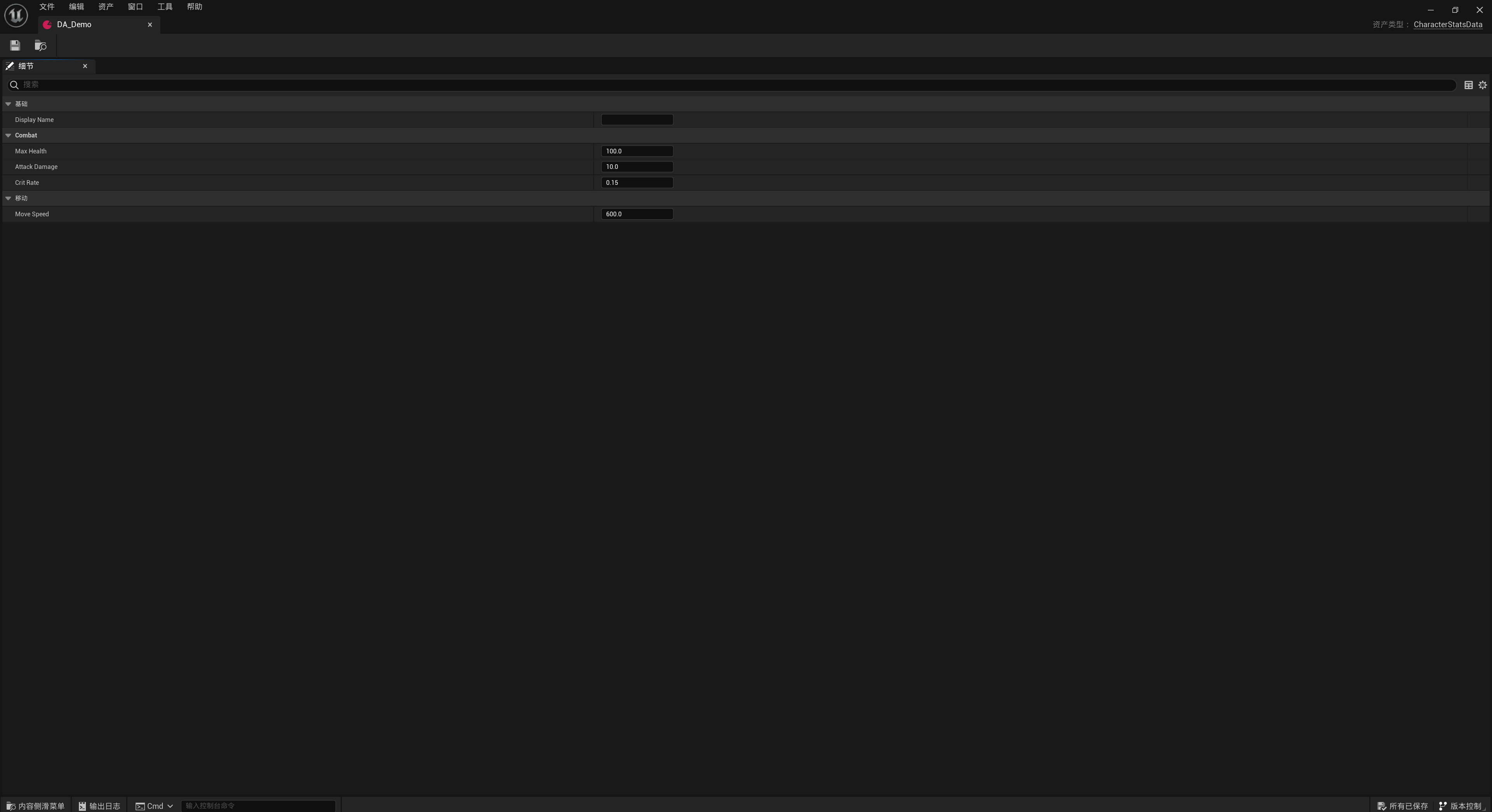
The plugin automatically exports the following JSON:
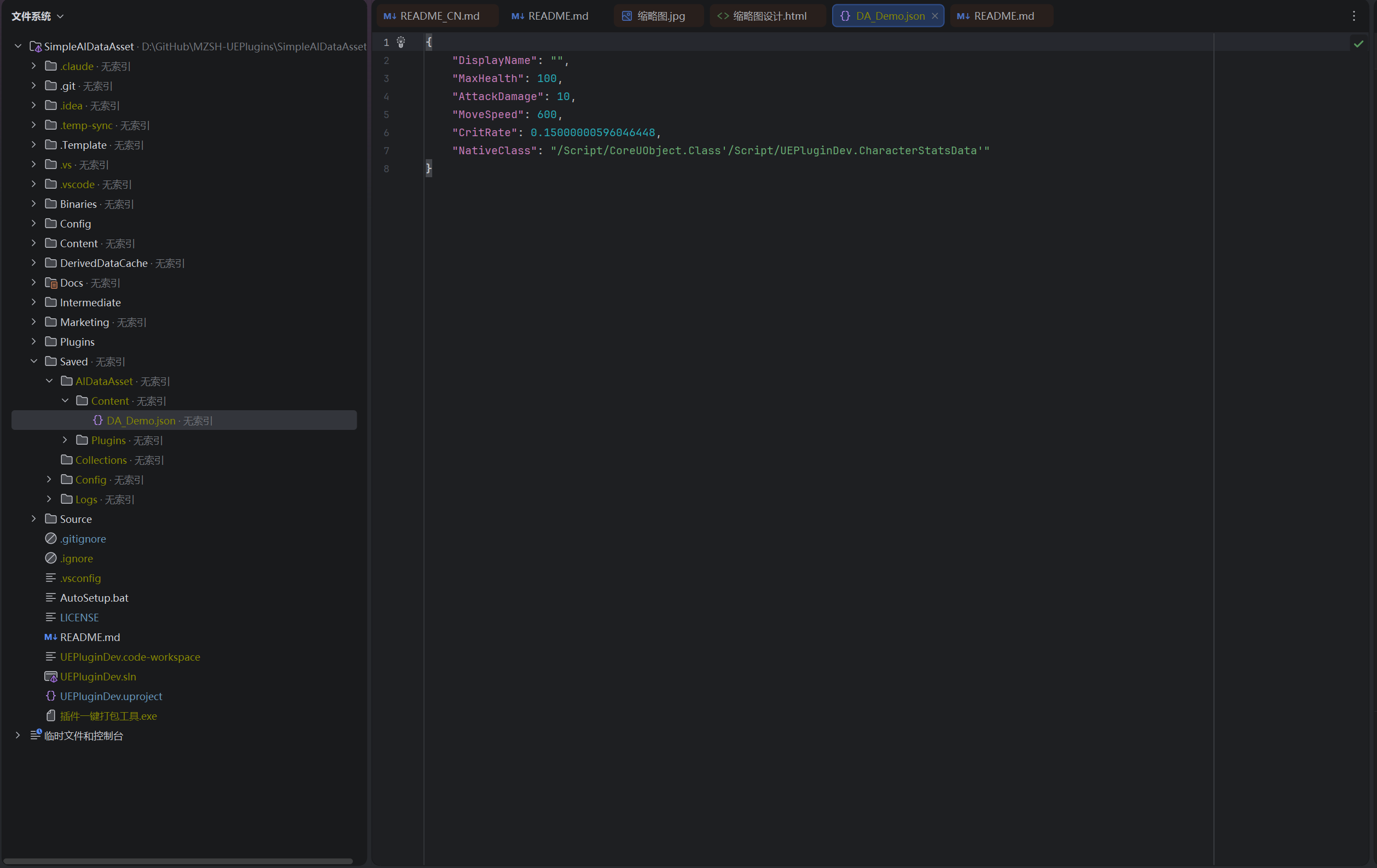
{ "DisplayName": "", "MaxHealth": 100, "AttackDamage": 10, "MoveSpeed": 600, "CritRate": 0.15000000596046448, "NativeClass": "/Script/CoreUObject.Class'/Script/UEPluginDev.CharacterStatsData'"}Note: Field names match the UE editor display (for example,
MaxHealthrather thanmaxHealth). The fixed decimal places in float’s%.9fcannot guarantee exact round trips across its full range; double uses%.17g. Check actual fields and acceptable error after editing.
AI Workflow Example
Section titled “AI Workflow Example”-
Tell the AI where the data files are:
Game character data is in:D:/MyProject/Saved/AIDataAsset/Content/Read DA_Demo.json, increase MaxHealth by 20%, reduce CritRate to 0.1,then save the file. -
The AI reads JSON, modifies values, and writes the file back:
{"DisplayName": "","MaxHealth": 120,"AttackDamage": 10,"MoveSpeed": 600,"CritRate": 0.10000000149011612,"NativeClass": "/Script/CoreUObject.Class'/Script/UEPluginDev.CharacterStatsData'"} -
The plugin detects the change and imports it into the existing DataAsset: Keep the UE editor running with automatic synchronization enabled, then save JSON to see changes in the editor. The plugin next attempts checkout and asset saving. If a save warning appears, follow the log to resolve it.
Recommendations
Section titled “Recommendations”- Keep the UE editor running with automatic synchronization enabled while editing JSON. Monitoring does not run while the editor is closed; edits made then are handled at the next startup under the rules above.
- Create the UE asset first, then edit its JSON. Creating JSON alone does not create a DataAsset, and orphan JSON may be removed during startup cleanup.
- Preserve the exported JSON structure, including the sample’s
NativeClassfield. It describes exported type information. Current import finds an existing asset by the JSON path rather than using this field to create one. Changing it cannot make the plugin generate a new asset type. - Invalid JSON or asset field-structure changes may cause import to fail. Check logs and actual asset contents after editing, and test in UE. Synchronization does not replace game-rule validation.
Common situations. If JSON is not updating, check that automatic synchronization is enabled, the editor is running, and the path corresponds to an existing asset. If asset values changed but a save warning appeared, check file write access and version-control checkout status before saving. JSON not regenerating immediately after deletion follows the deletion rules above; it does not mean the UE asset was deleted.
Supported Engine Versions
Section titled “Supported Engine Versions”- Unreal Engine 5.2–5.8
Version History
Section titled “Version History”Open Edit → Project Settings, go to the AI DataAsset settings page, and set Language to English or Chinese. English is the default. User-facing interfaces, prompts, notifications, and functional logs update immediately without restarting the editor; public API names and module startup/shutdown logs always remain in English.
Technical Source
Link to “Technical Source” sectionThe two-way synchronization implementation notes were published on CNBlogs on 2026-05-25.
Contact
Section titled “Contact”For usage questions or collaboration inquiries, visit the contact page.
- Contact: Contact and Collaboration