UEPackageManager User Guide
Complete product user guide for UEPackageManager
UEPackageManager
A general-purpose Unreal Engine project packaging tool. It provides GUI and command-line modes, invokes Unreal Automation Tool to perform Build, Cook, Stage, Pak, and Archive, and deploys specified files or folders into the package after packaging succeeds.
Download and Run
Section titled “Download and Run”Download UEPackageManager.exe from Releases.
- Double-click the EXE without arguments to hide the console and open the GUI.
- Run a subcommand in a terminal to retain the console and CLI output.
- Place the EXE in the project root containing
.uprojectand double-click it. The project and associated engine are detected automatically and cannot be selected or changed in the GUI. - Launching from a terminal in the project root also detects them automatically. If the EXE is elsewhere, the GUI refuses to package and tells you the correct location.
- The current EXE does not have commercial code signing. Windows may show a SmartScreen prompt on first launch. Use the SHA-256 file included with the Release to check download integrity.
Graphical Interface
Section titled “Graphical Interface”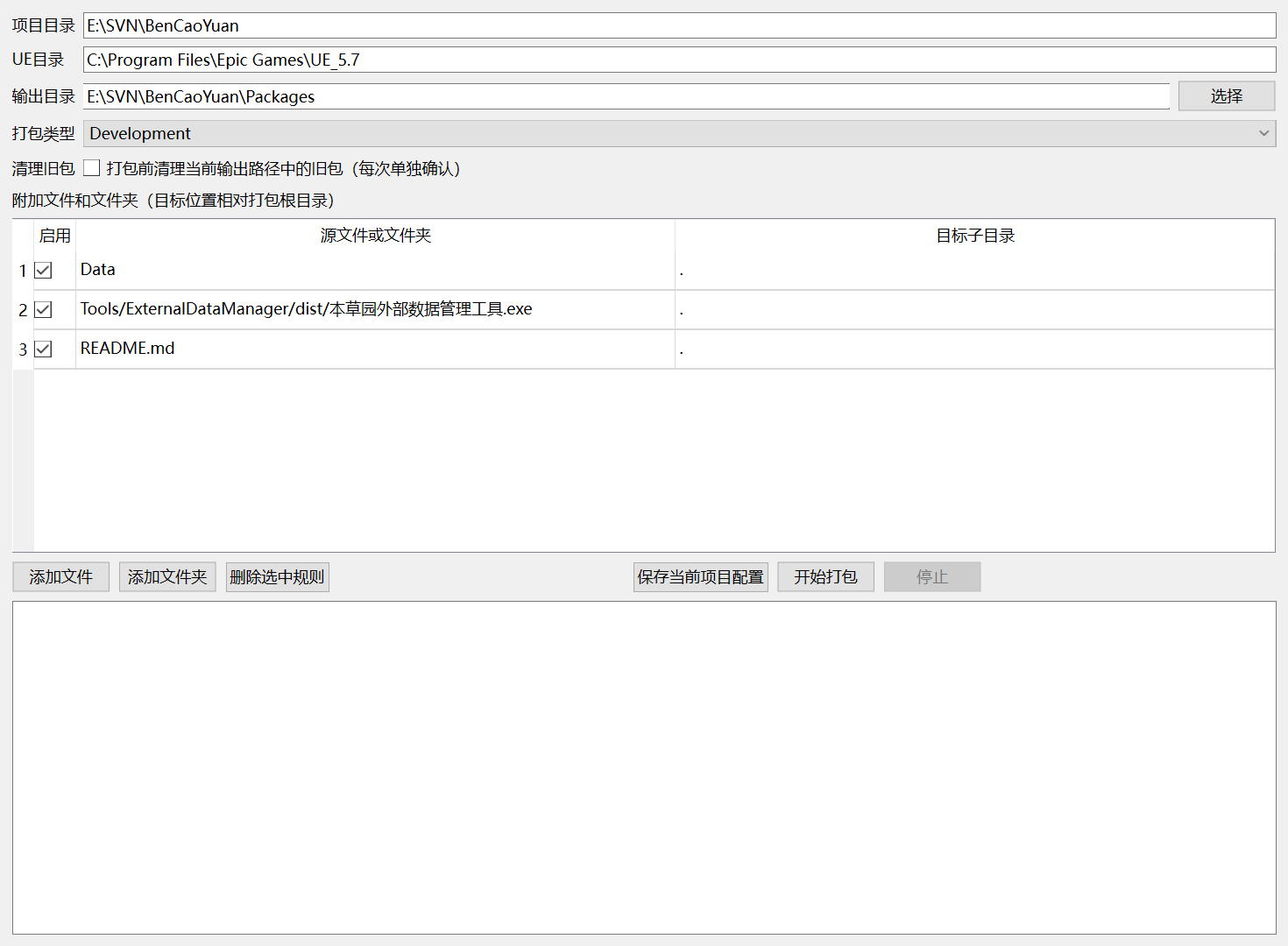
| Feature | Purpose | Notes |
|---|---|---|
| Project | Automatically reads .uproject beside the EXE or in the current working directory | Read-only in the GUI to prevent switching to another project |
| UE directory | Automatically detected from EngineAssociation | Read-only in the GUI; source-built engines can be configured through the CLI |
| Output directory | Select the Archive output location | The project root cannot be used directly |
| Build configuration | DebugGame, Development, Test, or Shipping | Shipping additionally enables compression |
| Clean old package | Remove recognized old packages from the current output path before packaging | The checkbox is saved with the project configuration; each actual cleanup still requires confirmation |
| Additional files | Copy files or folders after success | Each rule can specify a destination subdirectory inside the package and recursive ignore patterns |
Additional copying runs only after UE packaging succeeds. Directory copying skips .trash, .svn, .git, .codex, .agents, .vs, .idea, __pycache__, and .pyc, and checks file integrity afterward. Each rule also supports semicolon-separated name patterns to recursively ignore files or folders at any level, with * and ? wildcards, for example README*.md; Cache. The destination must be a relative directory inside the package root; absolute paths, drive letters, and .. are prohibited. Recursive ignore entries accept name patterns only and cannot contain paths.
Isolated Project Configuration
Section titled “Isolated Project Configuration”Each .uproject gets an independent project ID based on its normalized absolute path:
%LOCALAPPDATA%/UEPackageManager/Projects/<ProjectID>/config.jsonProject paths, engine directories, output directories, build configurations, and additional copy rules are not reused across projects. The GUI does not read a “recent project”; it binds only to the project associated with the current EXE or working directory. If the CLI cannot identify the project from the current directory, explicitly pass --project-root.
UEPackageManager.exe --versionUEPackageManager.exe config-show --project-root E:\Projects\MyGameUEPackageManager.exe configure --project-root E:\Projects\MyGame --configuration Shipping --output E:\Builds\MyGameUEPackageManager.exe copy-list --project-root E:\Projects\MyGameUEPackageManager.exe copy-add --project-root E:\Projects\MyGame --source E:\Assets\Data --target-directory . --ignore README*.md --ignore CacheUEPackageManager.exe copy-remove --project-root E:\Projects\MyGame --index 0UEPackageManager.exe validate --project-root E:\Projects\MyGameUEPackageManager.exe package --project-root E:\Projects\MyGame --dry-runUEPackageManager.exe package --project-root E:\Projects\MyGameWhen running in the project root, --project-root can be omitted. --dry-run prints the UAT command without starting packaging; --no-copy skips additional file deployment; --clean-output cleans only recognized old packages in the current output path before this packaging run. Changing the output path does not clean the previous location. Commands return 0 on success and 2 for argument, configuration, or execution errors.
Running from Source
Section titled “Running from Source”conda env create -f environment.ymlconda activate UEPackageManagercd /d E:\Projects\MyGamepython E:\Tools\UEPackageManager\Main.pypython E:\Tools\UEPackageManager\Main.py validate --project-root E:\Projects\MyGameOn Windows, you can also double-click Run.bat to launch the GUI or use CLI.bat to run commands.
Building a Single-File EXE
Section titled “Building a Single-File EXE”Build.batThe build reads only UEPackageManager.spec and produces dist/UEPackageManager.exe. This EXE retains the CLI console and automatically hides it in GUI mode with no arguments.
Current Scope
Section titled “Current Scope”- Supports packaging Win64 projects on Windows.
- Supports
DebugGame,Development,Test, andShipping; fullDebug, which usually requires a source-built engine, is not provided. - Supports Epic Launcher engines and manually specified source-built engines.
- Does not package standalone plugins; use the corresponding plugin packaging tool for plugin releases.
- Does not automatically close Unreal Editor, delete projects or output directories, or perform Git, SVN, or Perforce operations.