Perforce: Common Client Operations
Basics
By basics, I mean what everyone using Perforce should know
Creating a Workspace
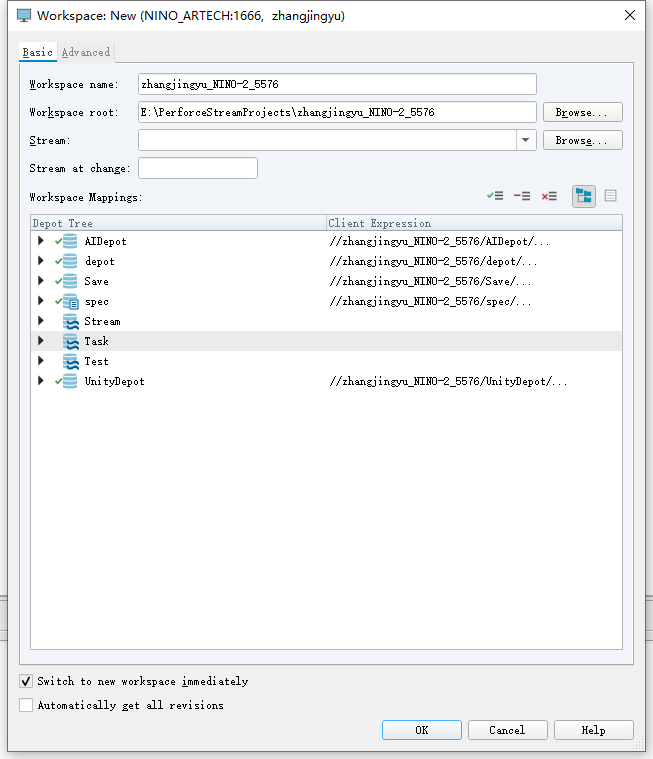
Set the workspace name and root directory, then select what the workspace links to
√ means add
- means exclude
X means clear
You can try it yourself. This lets you control which files enter your workspace and reduce unnecessary updates
Submitting
Select the changelist to submit under Pending
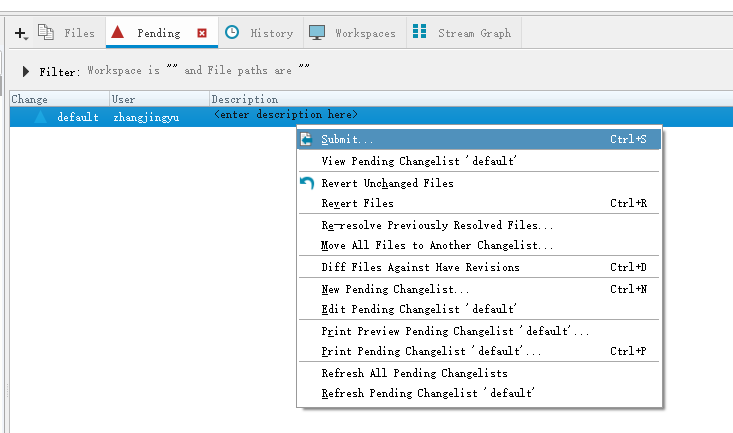
Right-click and select Submit to submit it
Updating
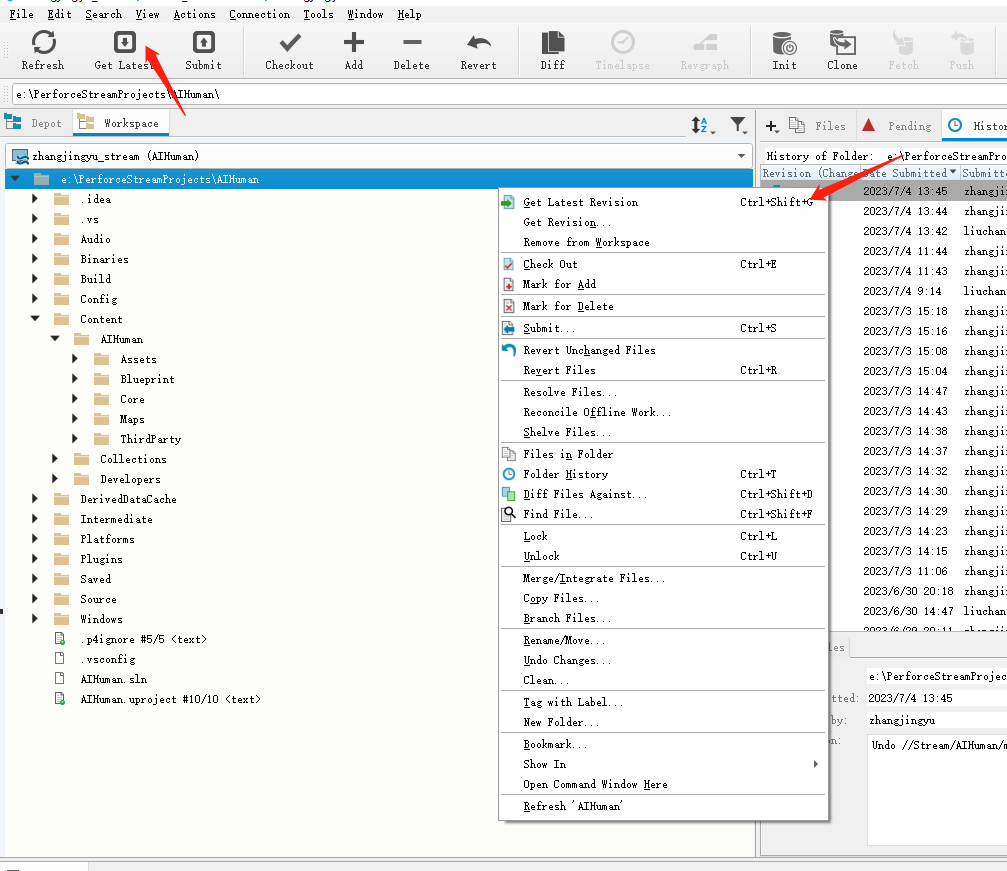
Select the files or folders to update, then click GetLatest or right-click and select GetLatestRevision
Viewing History
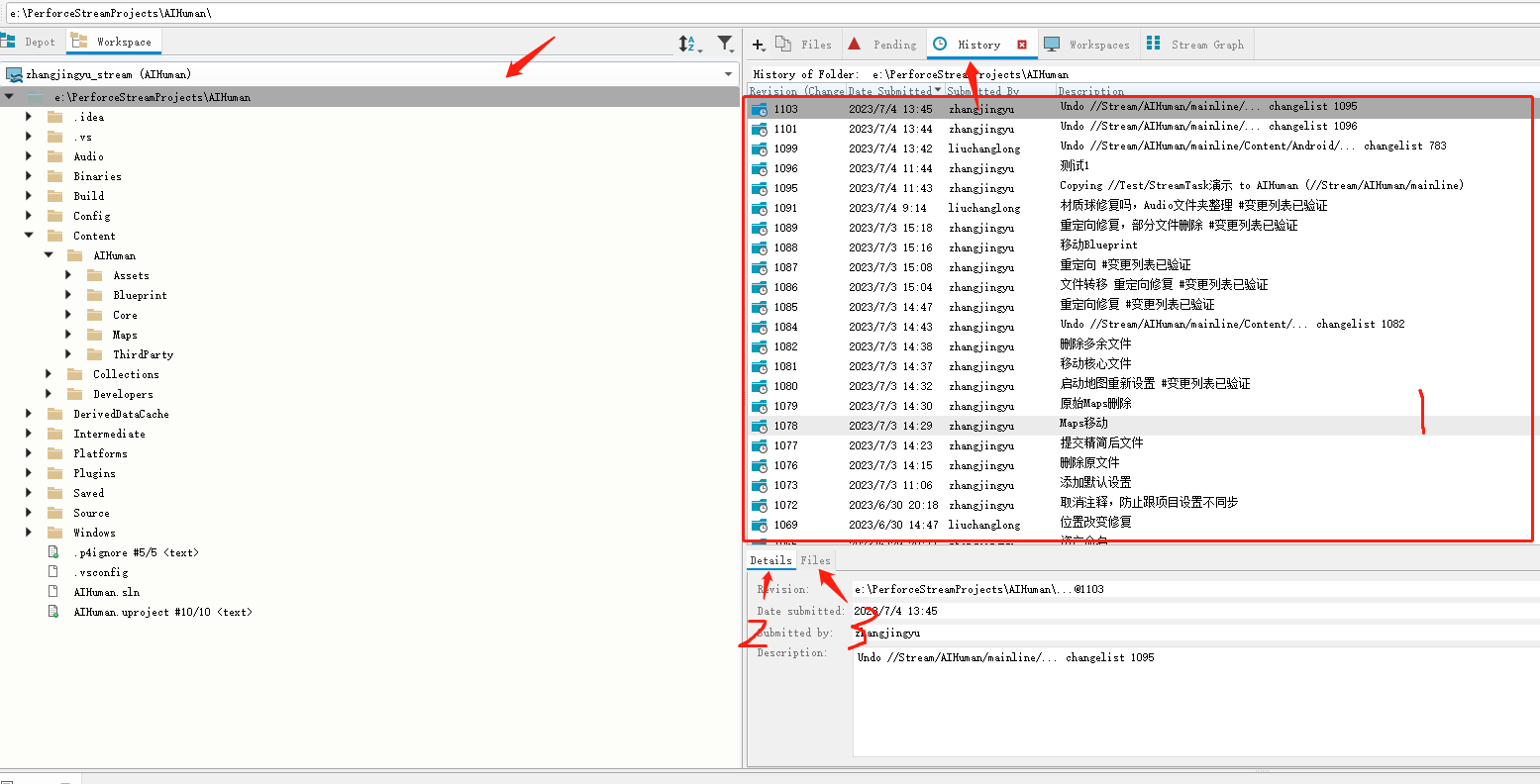
Left-click a file or folder to see its submission history
1.Submission history
2.Submission details, including submission time, submitter, description, and so on
3.Files modified in this change
Adding New Files
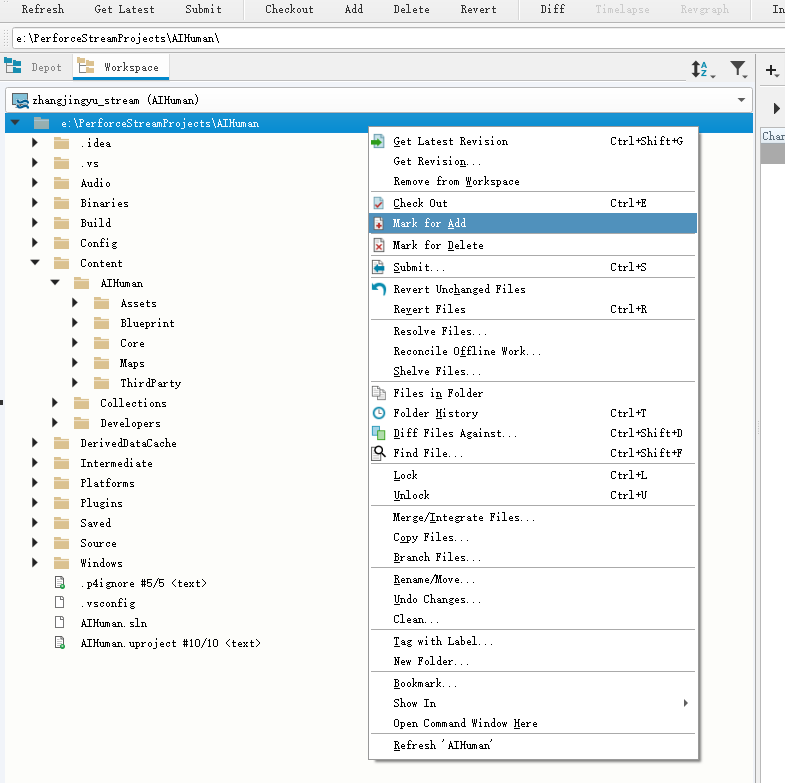
Right-clicking Mark for Add adds the selected files that do not match the ignore rules to the changelist
Deleting Files
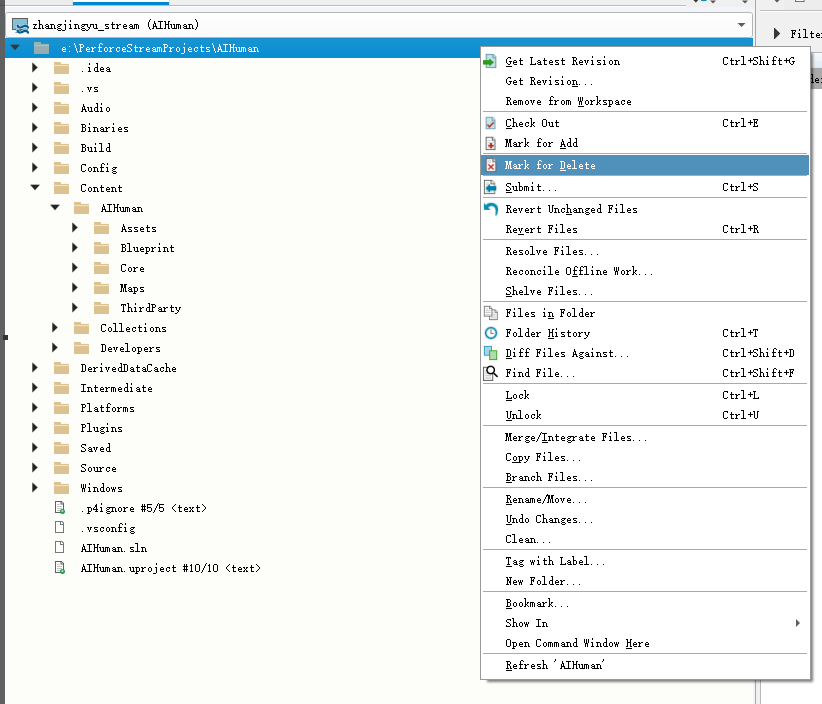
Right-click Mark for Delete to delete the selected files
They will first be placed in a changelist; upload them after confirming everything is correct
Checking Out Files
Most files under p4 version control are read-only and must be checked out before you can write to them
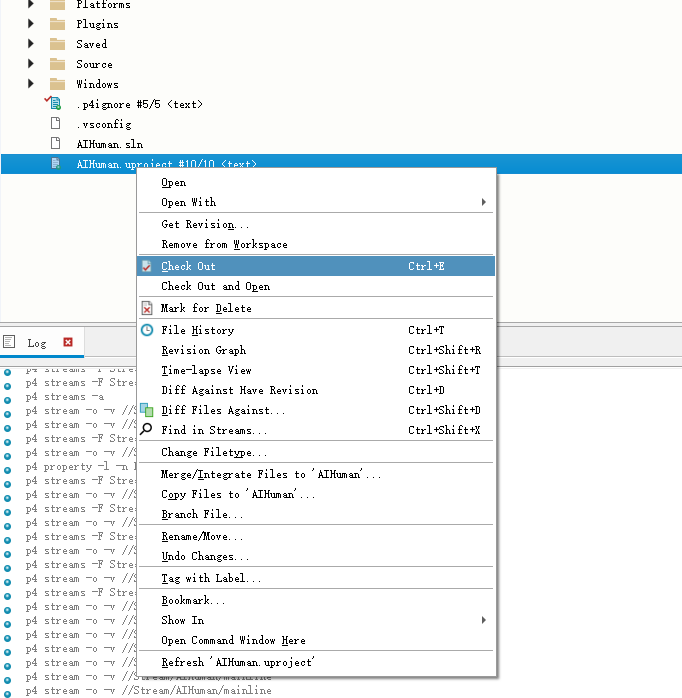
Simply right-click CheckOut to check them out. By default, they go into the default changelist
If you check out many files but only modify some of them, should the remaining files also be submitted?
The answer is no. Submitting unchanged files serves no purpose, clutters the repository, and makes the submission history harder to read
The correct approach is to revert unchanged checkouts, as follows
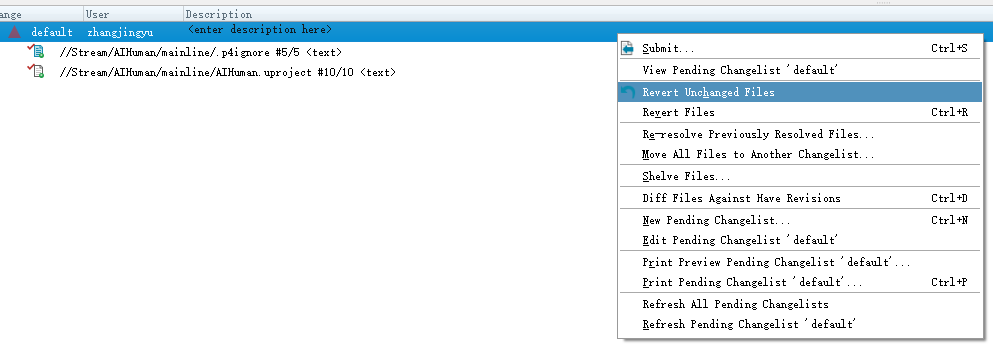
Select the changelist, right-click, and choose RevertUnchangedFiles
Reverting Files
Reverting is generally used when local content differs from repository files, or after an accidental checkout or edit, and you need to restore the repository version
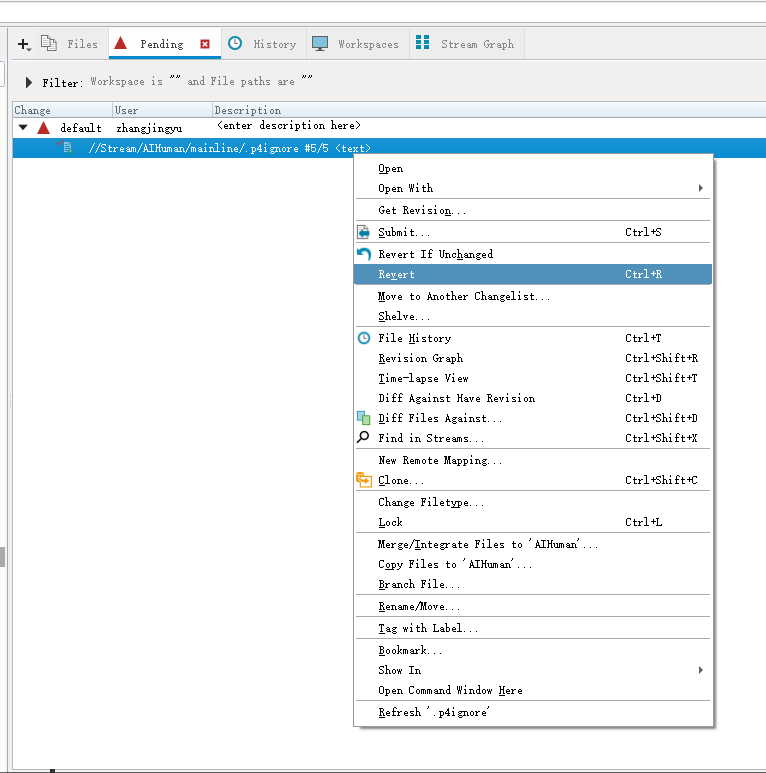
Select the file to revert in the changelist
If it is a file being added, the addition is canceled and the local file is retained
If it is a file being deleted, the deletion is canceled and the local file is automatically downloaded again
If it is already in the repository and differs from the repository file, it is overwritten by the repository file. If it is checked out, the checkout is also canceled
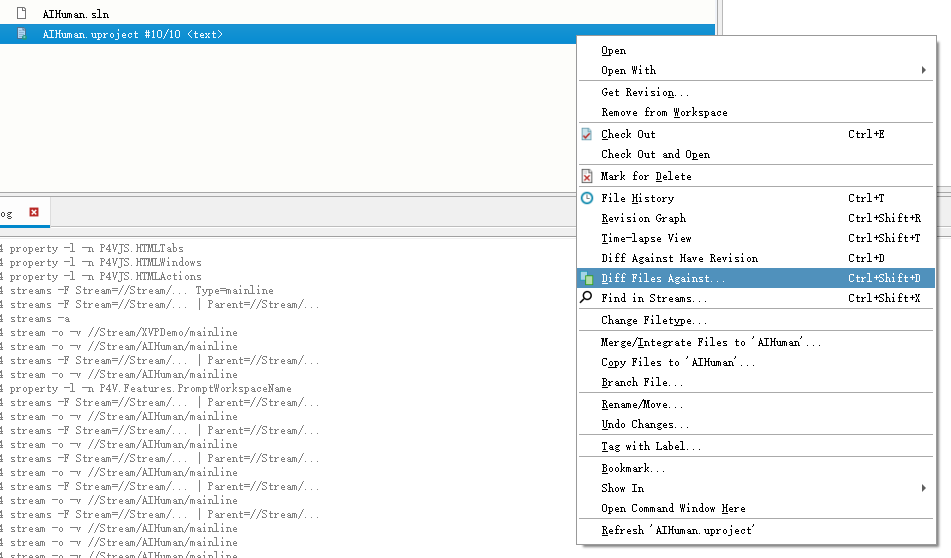
Comparing Files
File comparison is generally used to find differences and make corrections when a branch merge goes wrong
Or when you want to know the difference between the local and repository files. If there is no difference, it reports that the comparison failed
Select the file and right-click to compare
Cleaning Files
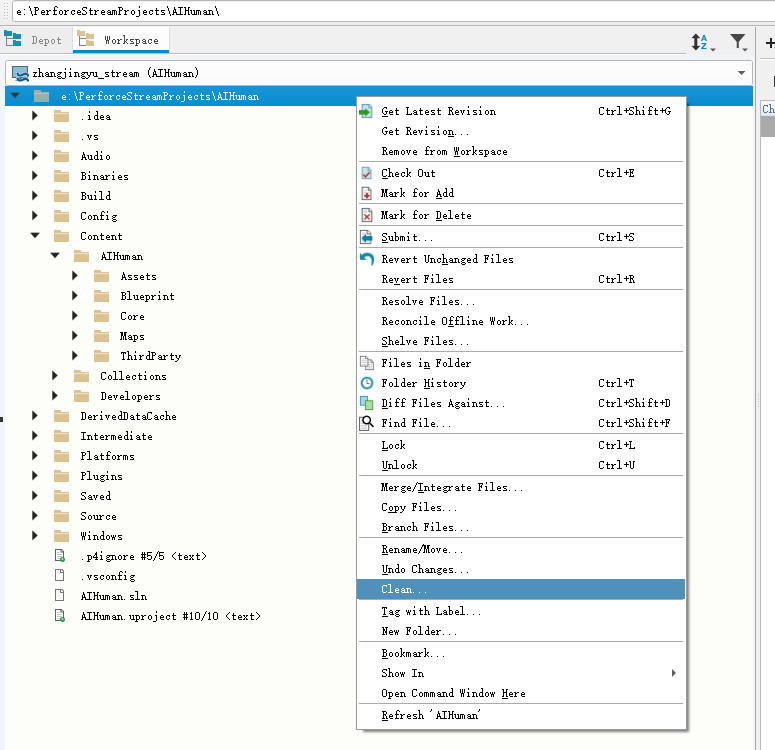
File cleanup is generally used to restore the local workspace completely to the repository version
Clean lists all local files that differ from the repository, including files outside version control, and lets you choose to clean them in one click or keep them
Note that Clean does not clean files in changelists
The procedure is as follows:
Select the files, right-click, and choose Clean
Advanced
By advanced operations, I mean: if you are not confident, do not do them
Undoing Submissions
Undoing a Single Submission
Select the submission in the history, right-click, and choose Undo
Undoing All Submissions After This One
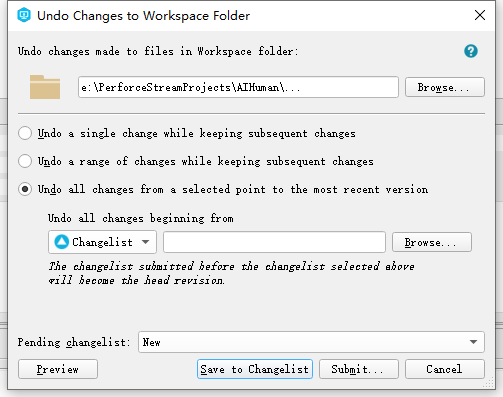
Select the files or folders whose changes you want to undo, right-click, and choose Undo Changes
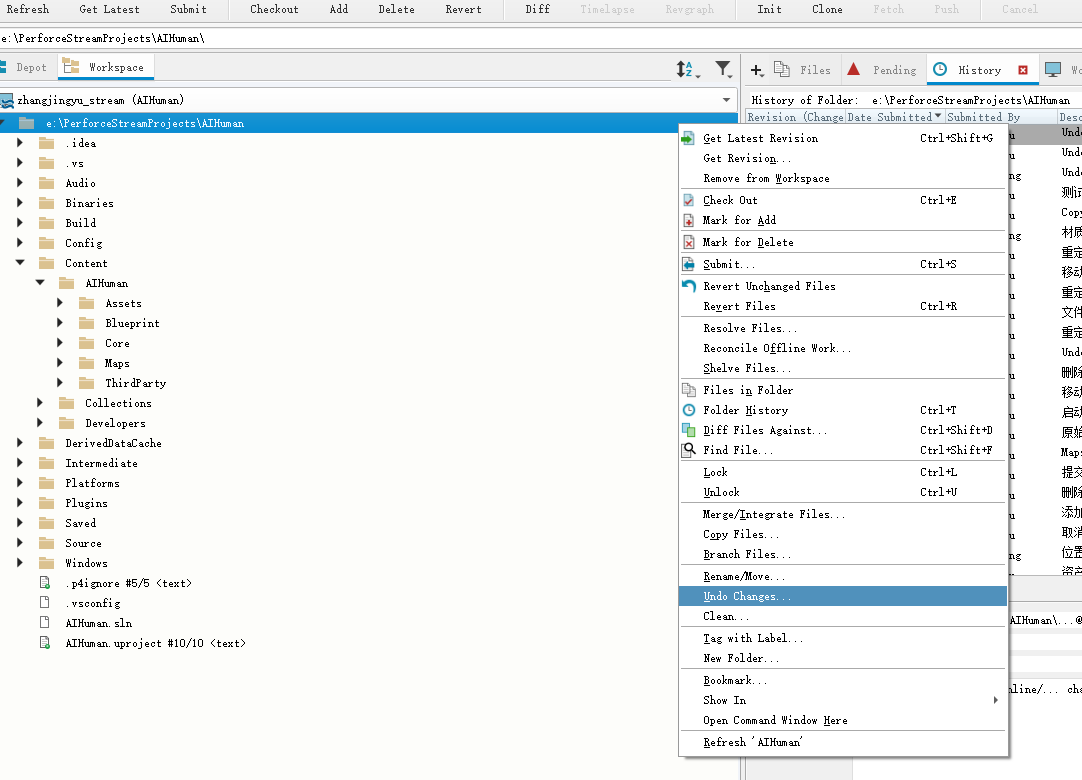
Choose what to undo. From top to bottom, the options are
Undo a single change while preserving subsequent changes
Undo a range of changes while preserving subsequent changes
Undo all changes from the selected point to the latest revision
After choosing what to undo, click Submit to submit it
Manually Editing Workspace Mappings
Only regular workspaces can be edited; Stream workspaces cannot
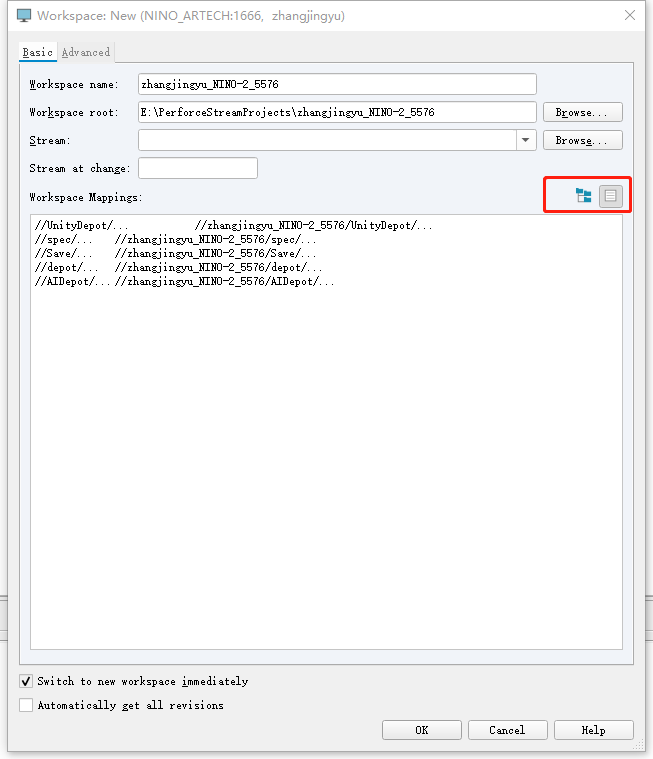
Set the file mappings directly here. They can reference any depot
For example, suppose your workspace is named Test
You want to put the files from UnrealPlugins in the Save depot into the Plugins folder of your workspace
Then you should write
//Save/UnrealPlugins/… //Test/Plugins/…
If you want to exclude Prefixed from UnrealPlugins, add - at the front
-//Save/UnrealPlugins/Prefixed/… //Test/Plugins/Prefixed/…