UE: Custom Configuration with DeveloperSettings
Creation
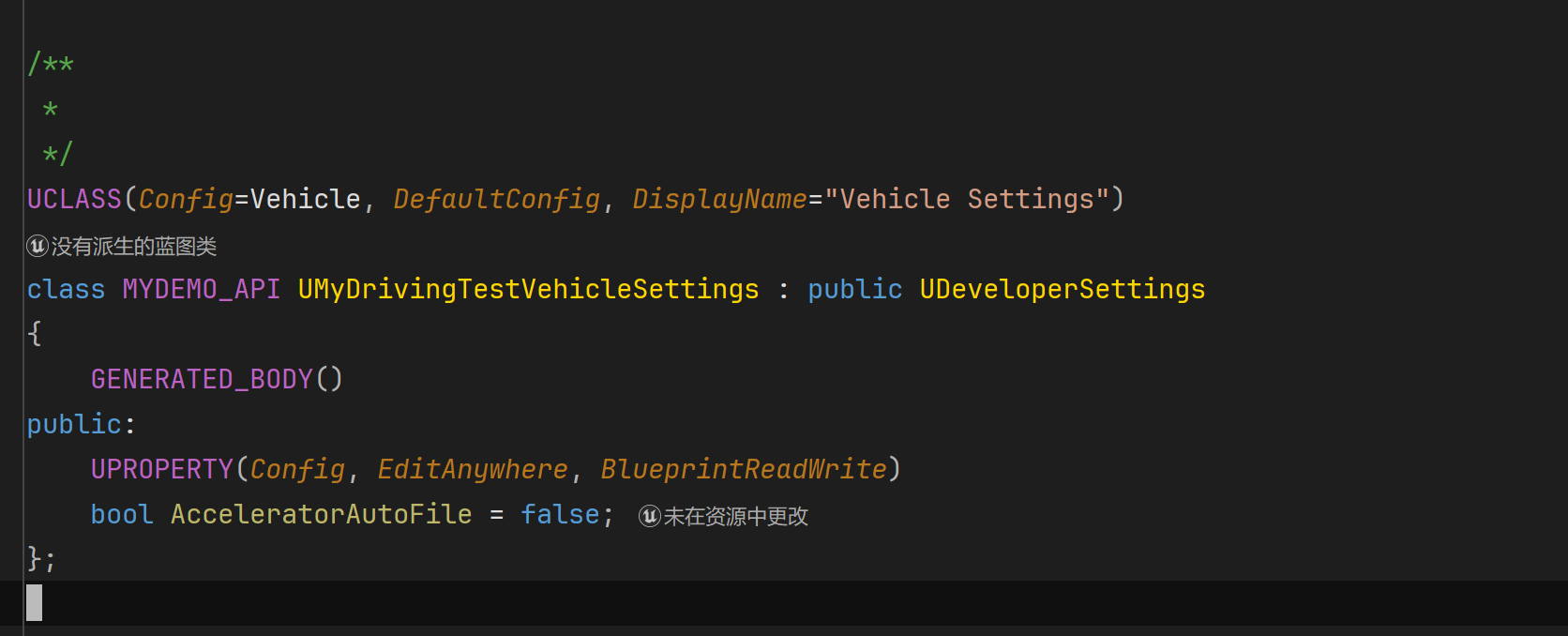
Create a class derived from UDeveloperSettings
In the class specifiers, Config=Game means configuration in Game.ini; adding DefaultConfig makes it DefaultGame.ini
The name following config= is the configuration file name
So here the configuration is in DefaultVehicle.ini
ini Configuration Format
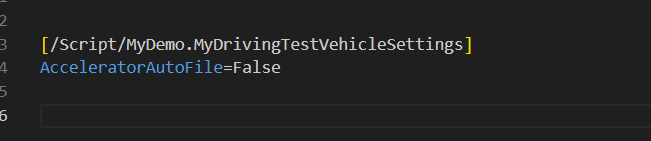
The configuration format is [/script/ModuleName/ClassName]

The Map format is ((key,value),(key,value))
Both Map and Array can be continued on subsequent lines using +, rather than writing everything on one line
Editor Project Settings
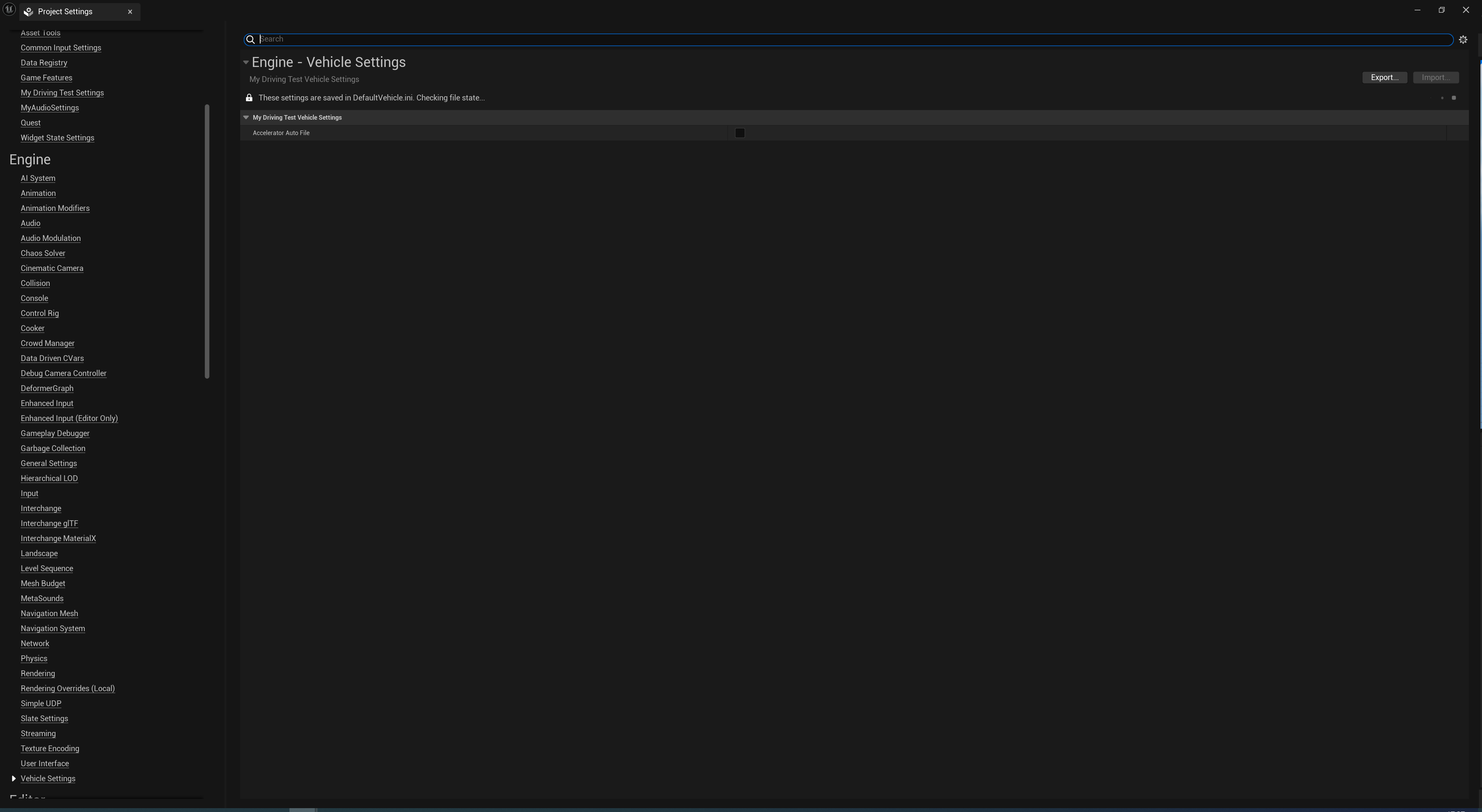
The value following DisplayName= is the name shown in the editor’s Project Settings
Categories are determined by the value following config=
It can be game, engine, or plugins
You can also use a custom value, which defaults to the engine category
After adding DefaultConfig, changing values here automatically generates the configuration file
Access

Access it through GetDefault in C++
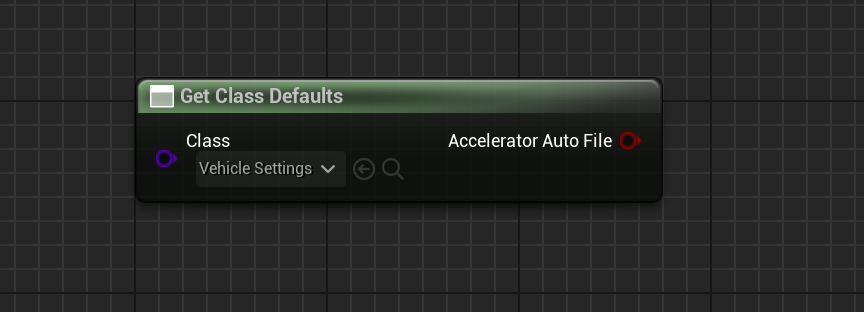
In Blueprints, call GetClassDefaults to access it
Packaging Exclusions

First add the configuration files to exclude in DefaultGame.ini
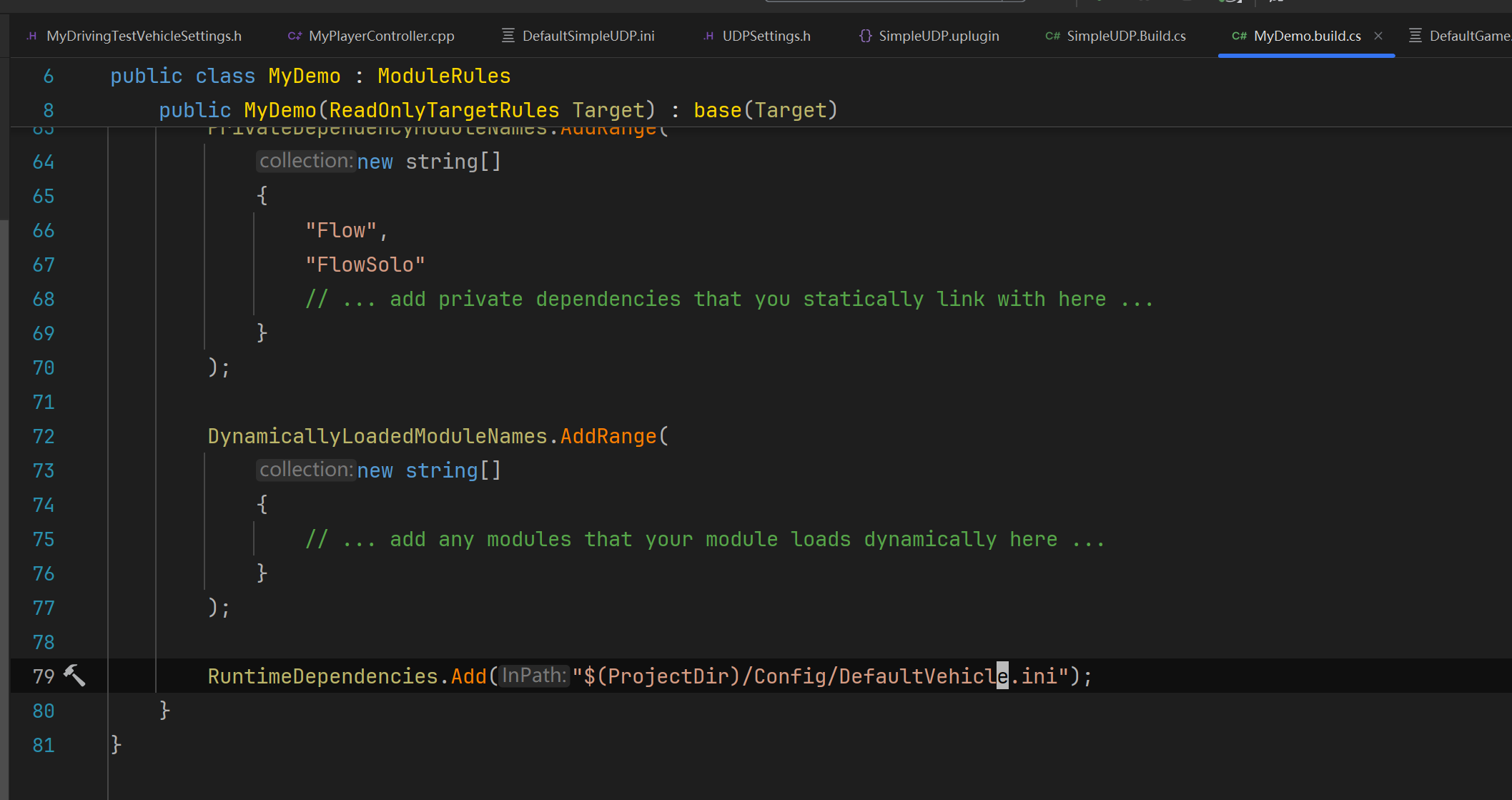
Then add the reference declaration in the corresponding module, so packaging automatically copies the file into the packaged config directory
The benefit is that you can still change game rules by editing the configuration file after packaging
Thanks for reading. Feel free to like, follow, bookmark, and discuss questions in the comments.
If this article helped you, click here to donate and support the author.
