UE: What to Do When Only One Monitor Displays After Going Fullscreen on Multiple Monitors
This discusses an issue that occurs when starting a game with multiple monitors combined into one display using NVIDIA Surround.
Cause
The code screenshots here are from Unreal 5.3.2.
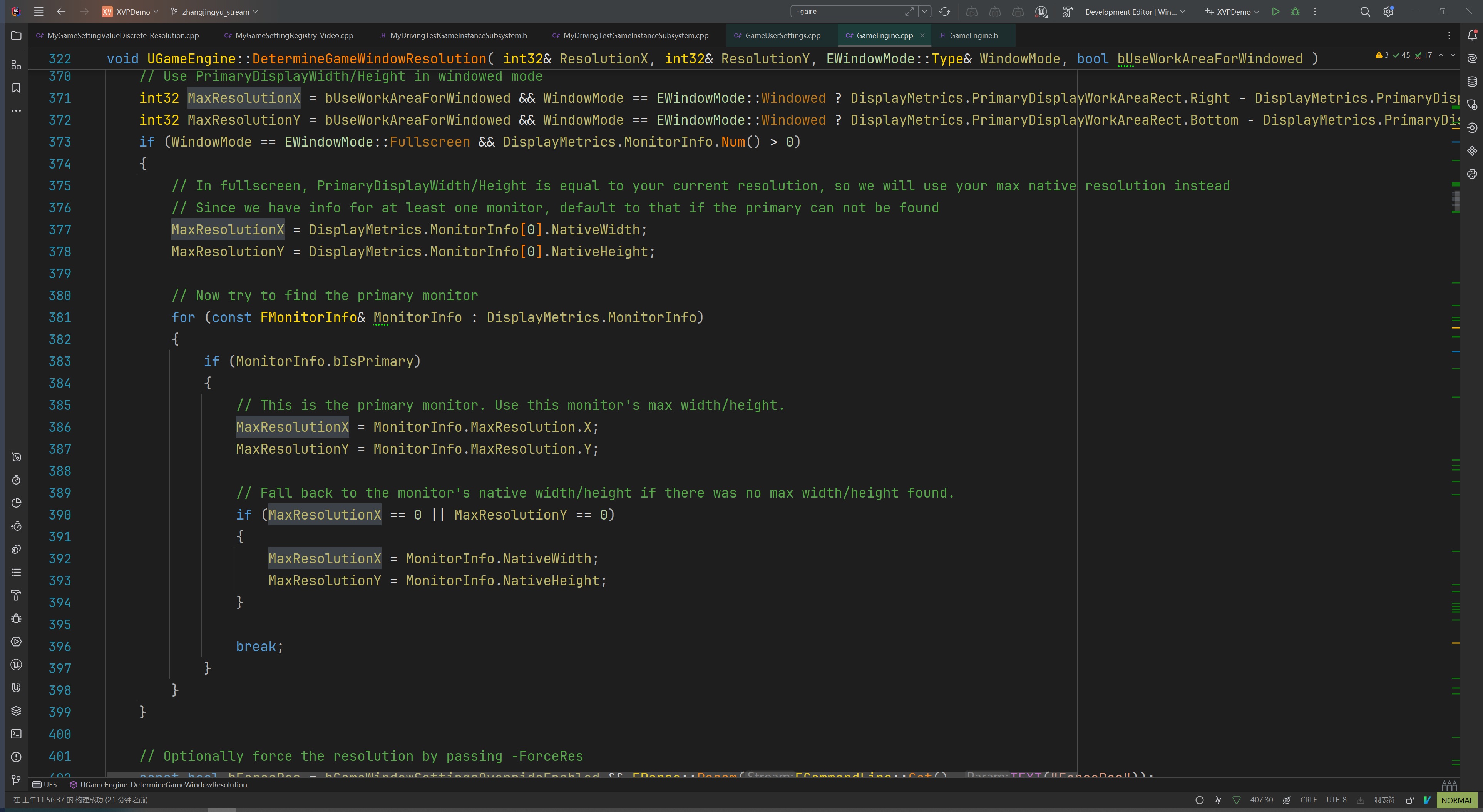
When entering fullscreen, a maximum resolution is obtained. This is the resolution of your primary monitor. Even if Surround combines the monitors into one large display, this code still retrieves the previous single-monitor resolution. This is the root cause of the problem.
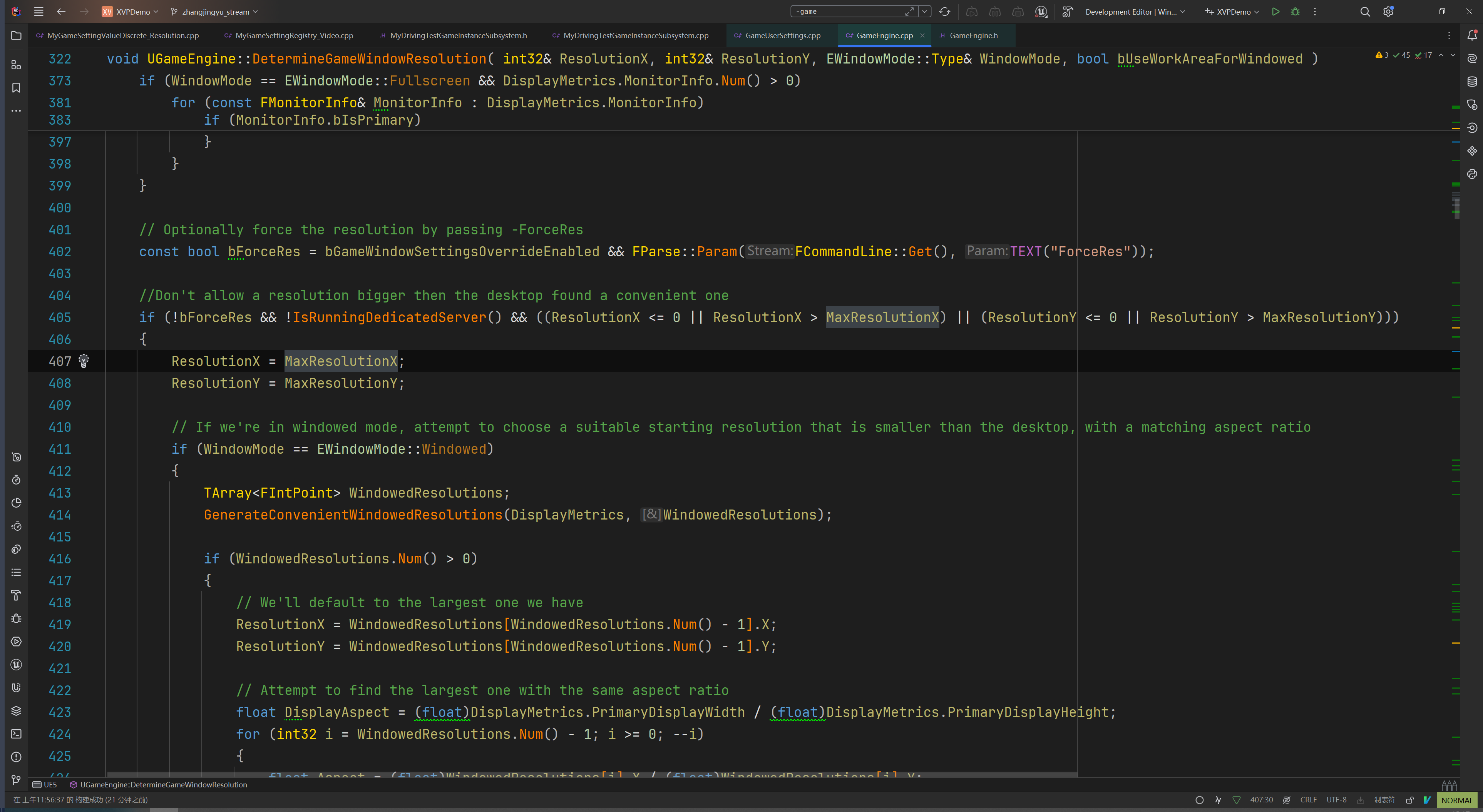
Then, this part checks whether ForceRes is present in the command line. If it is absent and your configured resolution exceeds the maximum resolution—in other words, the single-monitor resolution—the resolution is forced to the single-monitor resolution. UE fullscreen has an issue where it forces the use of one monitor when your resolution does not exceed the single-monitor resolution. I have not yet found where that issue occurs.
So the simplest thing we can do is make this code detect ForceRes to avoid using the single-monitor resolution.
Solutions
Option 1: Add -Fullscreen to the program shortcut. This makes fullscreen the default, but there is a problem: after adding it, switching to borderless mode also leaves only one monitor usable. Therefore, this option works if the program only uses fullscreen.
Option 2: Add -ForceRes to the program shortcut. This forces the resolution and completely avoids this problem.
Option 3: If adding a shortcut is inconvenient for the program, find a suitable place to call the following:
FString CommandLine = FCommandLine::Get();
	CommandLine += " -ForceRes";
	FCommandLine::Set(*CommandLine);

	if(const UGameUserSettings* GameUserSettings = GEngine->GetGameUserSettings();
		GameUserSettings && GameUserSettings->GetFullscreenMode() == EWindowMode::Type::Fullscreen)
	{
		const FIntPoint IntPoint = GameUserSettings->GetScreenResolution();
		GameUserSettings->RequestResolutionChange(IntPoint.X, IntPoint.Y, EWindowMode::Type::Fullscreen, true);
	}
I added it to an EngineSubsystem because it needs to run as early as possible.
This adds -ForceRes to the command line so it can be detected the next time the mode changes to fullscreen.
The part below handles the first time, meaning the state when the game starts. If the game starts in fullscreen, manually call the resolution change function to ensure that -ForceRes takes effect.
Obtaining an Appropriate Resolution
	Resolutions.Empty();
	ResolutionsFullscreen.Empty();
	ResolutionsWindowed.Empty();
	ResolutionsWindowedFullscreen.Empty();

	FDisplayMetrics InitialDisplayMetrics;
	FSlateApplication::Get().GetInitialDisplayMetrics(InitialDisplayMetrics);

	FScreenResolutionArray ResArray;
	RHIGetAvailableResolutions(ResArray, true);

	auto Screen = [&](const TFunctionRef<bool(FVector2f const& Point)>& Fn, TArray<TSharedPtr<FScreenResolutionEntry>>& ResolutionArray)
	{
		for(const auto& [Width, Height, RefreshRate] : ResArray)
		{
			if(Fn(FVector2f(Width, Height)))
			{
				TSharedRef<FScreenResolutionEntry> Entry = MakeShared<FScreenResolutionEntry>();
				Entry->Width = Width;
				Entry->Height = Height;
				ResolutionArray.Emplace(Entry);
			}
		}
	};

	const FVector2f MinResolution(1280, 720);
	const FVector2f MaxResolution(InitialDisplayMetrics.PrimaryDisplayWidth, InitialDisplayMetrics.PrimaryDisplayHeight);
	const float AspectRatio = MaxResolution.X / MaxResolution.Y;

	int32 MaxResolutionX = InitialDisplayMetrics.PrimaryDisplayWidth;
	int32 MaxResolutionY = InitialDisplayMetrics.PrimaryDisplayHeight;
	if (InitialDisplayMetrics.MonitorInfo.Num() > 0)
	{
		for (const FMonitorInfo& MonitorInfo : InitialDisplayMetrics.MonitorInfo)
		{
			if (MonitorInfo.bIsPrimary)
			{
				MaxResolutionX = MonitorInfo.MaxResolution.X;
				MaxResolutionY = MonitorInfo.MaxResolution.Y;

				if (MaxResolutionX == 0 || MaxResolutionY == 0)
				{
					MaxResolutionX = MonitorInfo.NativeWidth;
					MaxResolutionY = MonitorInfo.NativeHeight;
				}
				break;
			}
		}
	}

	auto AddRes = [&](FVector2f Res)
	{
		Res.X = MaxResolution.X * Res.Y / MaxResolution.Y;

		FScreenResolutionRHI RHI;
		RHI.Width = Res.X;
		RHI.Height = Res.Y;

		for(int32 i = 0; i < ResArray.Num(); ++i)
		{
			if(ResArray[i].Width == RHI.Width && ResArray[i].Height == RHI.Height)
			{
				return;
			}
			else if(ResArray[i].Width == RHI.Width && ResArray[i].Height > RHI.Height)
			{
				ResArray.Insert(RHI, i);
				return;
			}
			else if(ResArray[i].Width > RHI.Width)
			{
				ResArray.Insert(RHI, i);
				return;
			}
		}
		ResArray.Push(RHI);
	};

	// 常用分辨率添加,并且适配多屏
	AddRes(FVector2f(1920, 1080));
	AddRes(FVector2f(2560, 1440));
	AddRes(FVector2f(3840, 2160));

	Screen([&](FVector2f const& Point)->bool
	{
		if(Point.X >= MinResolution.X && Point.Y >= MinResolution.Y && Point.X <= MaxResolution.X && Point.Y <= MaxResolution.Y
			&& AspectRatio == Point.X / Point.Y)
		{
			return true;
		}
		return false;
	},ResolutionsWindowed);

	Screen([&](FVector2f const& Point)->bool
	{
		if(Point.X >= MinResolution.X && Point.Y >= MinResolution.Y && Point.X <= MaxResolution.X && Point.Y <= MaxResolution.Y
			&& AspectRatio == Point.X / Point.Y && Point.X > MaxResolutionX)
		{
			return true;
		}
		return false;
	},ResolutionsFullscreen);

	Screen([&](FVector2f const& Point)->bool
	{
		if( Point.X == MaxResolution.X && Point.Y == MaxResolution.Y)
		{
			return true;
		}
		return false;
	},ResolutionsWindowedFullscreen);
This is a snippet copied from a project and is provided for reference only.
Thanks for reading. Feel free to like, follow, or bookmark this article, and discuss any questions in the comments.
If this article helped you, click here to donate and support the author.
